Install Surfacedd and reach your first report in minutes
Pick the build for your computer, open it, and either explore the fictional sample workspace or activate your licence and start setup.
By the Surfacedd teamUpdated 3 min readMarkdown
On this page
Short answer
To install Surfacedd, download the notarized disk image for macOS 14 or later and drag it to Applications, or install it from the Microsoft Store on Windows 10 version 1809 or later and Windows 11. A direct Windows installer is optional. On first launch you can explore a sample workspace with no licence or keys.
This guide gets Surfacedd onto your computer and through its first screen. Activating the licence and adding keys have their own guides, linked at each step.
Before you start
| Check | Mac | Windows |
|---|---|---|
| System | macOS 14 Sonoma or later | Windows 10 version 1809 or later, or Windows 11 |
| Processor | Apple silicon or Intel (one universal build) | x64 |
| Admin rights | Not needed beyond copying to Applications | Not needed (Store and direct installs are per user) |
| Network | For runs, key tests, licence checks and updates | Same |
You don't need a licence or API keys to install. They come in at setup, and you can skip both by exploring the sample workspace first.
Install on a Mac
- Download the disk image from Surfacedd for Mac.
- Optional: check the file. In Terminal, run
shasum -a 256on the.dmgand compare the result with the SHA-256 printed under the download button. - Open the disk image and drag Surfacedd onto Applications.
- Open Surfacedd from Applications. macOS asks once whether you want to open an app downloaded from the internet. Surfacedd is signed with an Apple Developer ID and notarized by Apple, so no other warning should appear.
If macOS shows a different message, such as "cannot check for malicious software" or that the app is damaged, follow Mac Gatekeeper messages.
Install on Windows
Microsoft Store (recommended). Open the Store link on Surfacedd for Windows, choose Get or Install, then open Surfacedd from the Start menu. Microsoft signs Store packages, so there is no SmartScreen warning, and the Store installs updates for you.
Direct installer (optional). For PCs without Store access:
- Download the
.exefrom Surfacedd for Windows. - Optional: in PowerShell, run
Get-FileHashon the file and compare the SHA-256 with the one on the download page. - Run the installer. It isn't code-signed, so Windows may show Windows protected your PC: click More info, then Run anyway.
- The installer adds Surfacedd for your user account only and downloads Microsoft Edge WebView2 if your PC doesn't have it.
If there is no Run anyway button, Windows 11's Smart App Control is probably on; see Windows SmartScreen messages.
First launch
Surfacedd opens on a welcome screen with two choices.
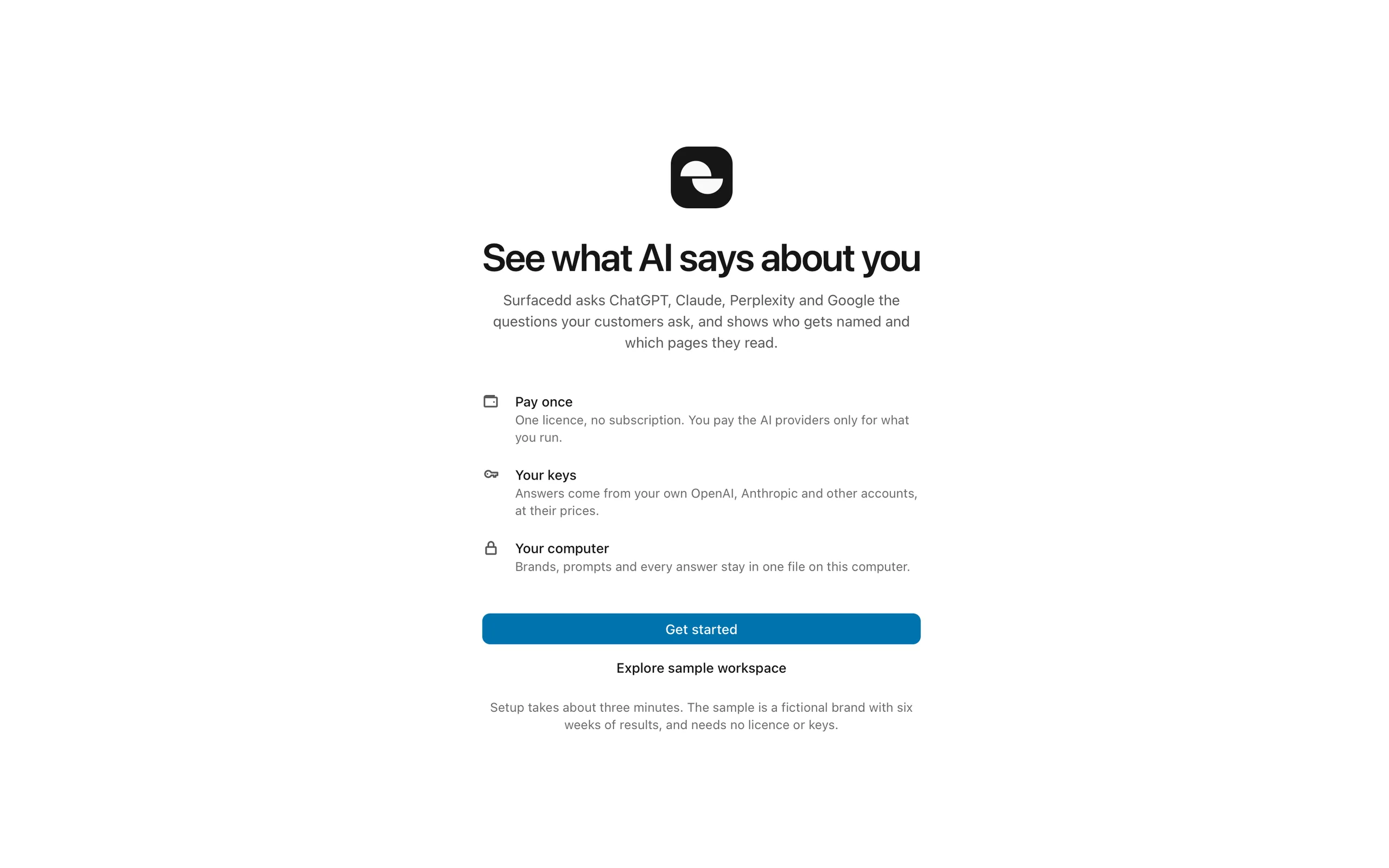
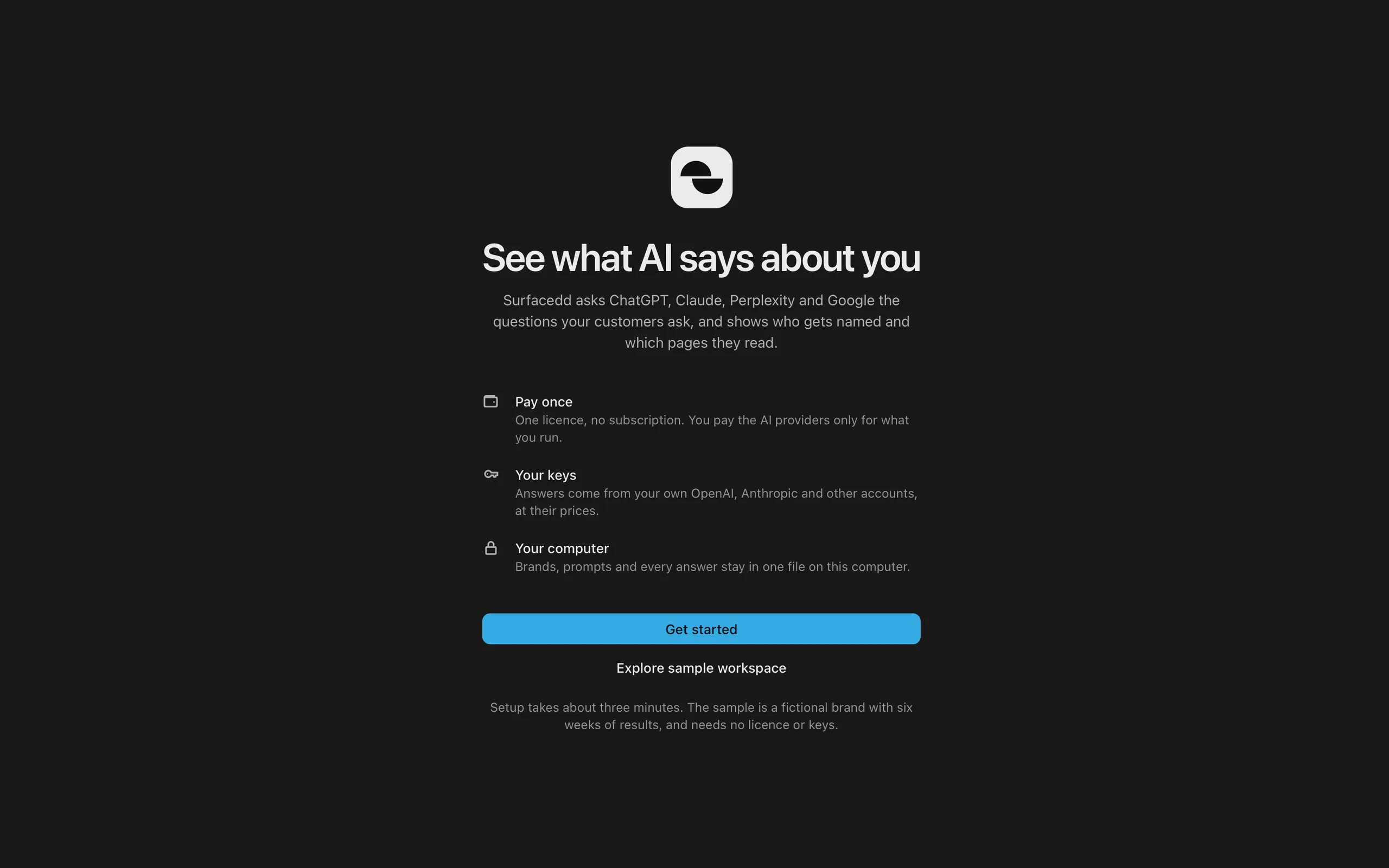
- Explore sample workspace opens a fictional brand with six weeks of results. It needs no licence and no keys, and nothing you click there spends money. You can return to setup at any time.
- Get started begins setup, which takes about three minutes: licence, provider keys, your website, markets, prompts and engines, ending with your first run.
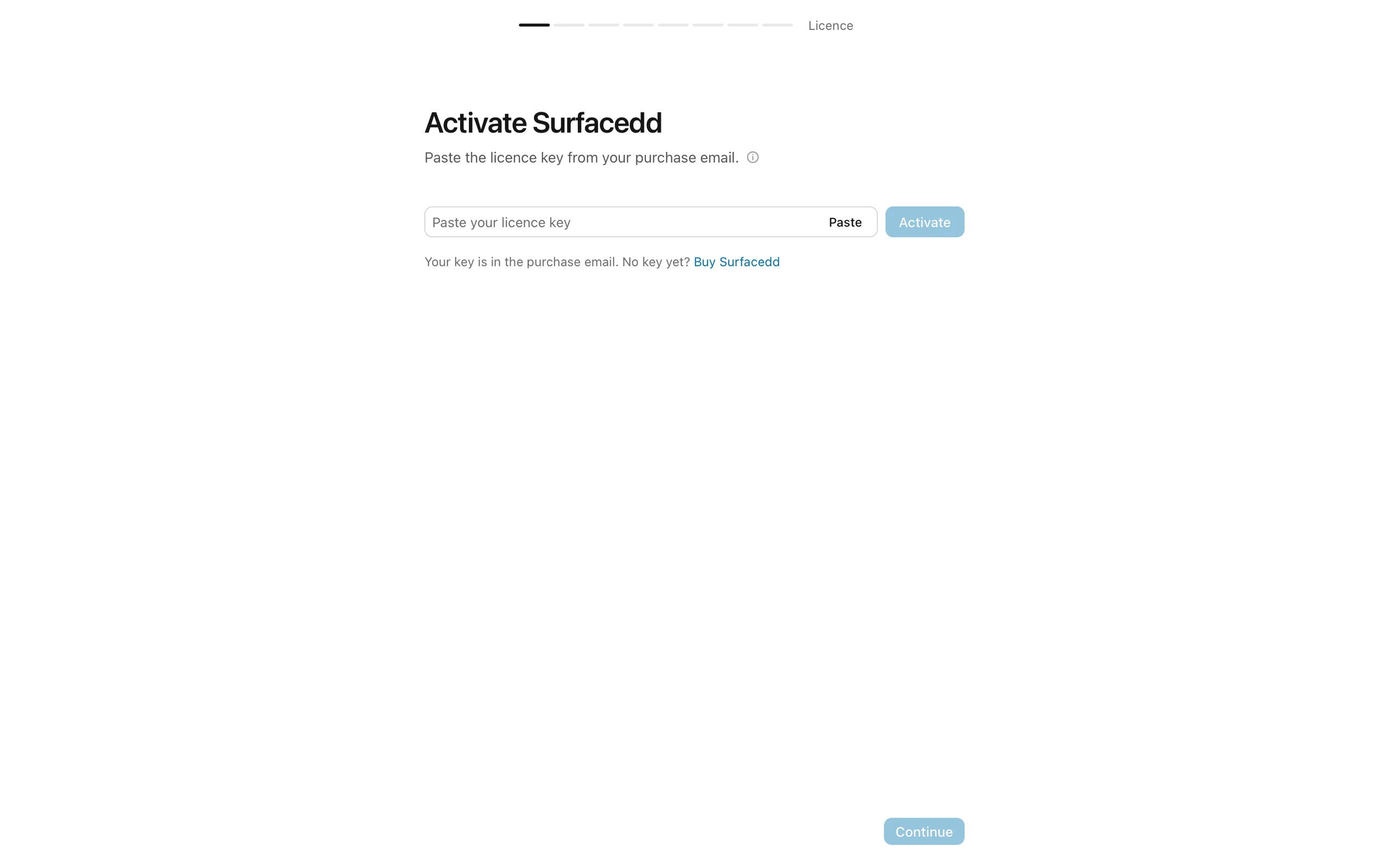
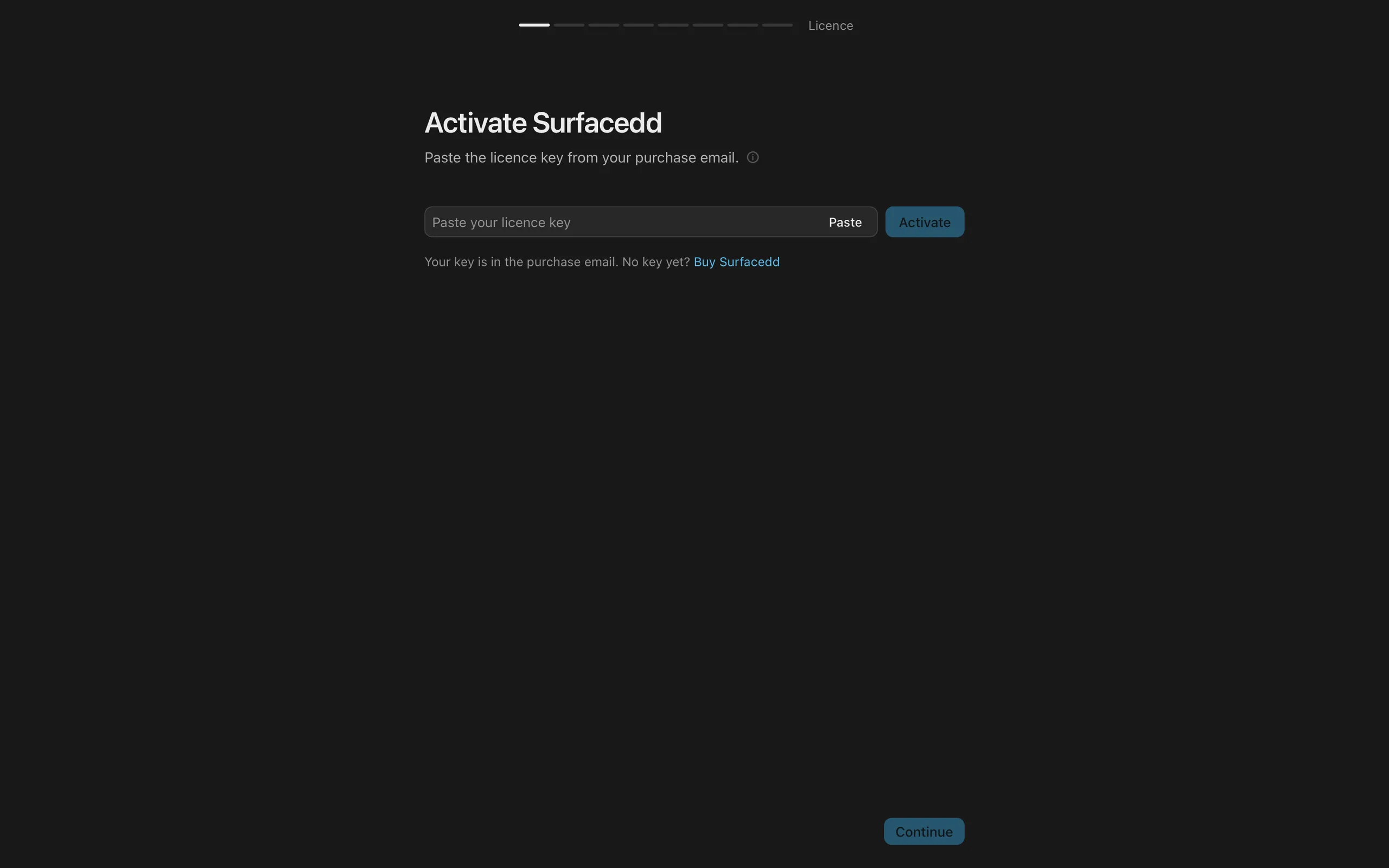
The first setup step asks for your licence key. Paste it, or open the activation link from your purchase confirmation: Surfacedd shows the key's last four characters and asks you to confirm before using it. Activate your licence covers device limits and errors.
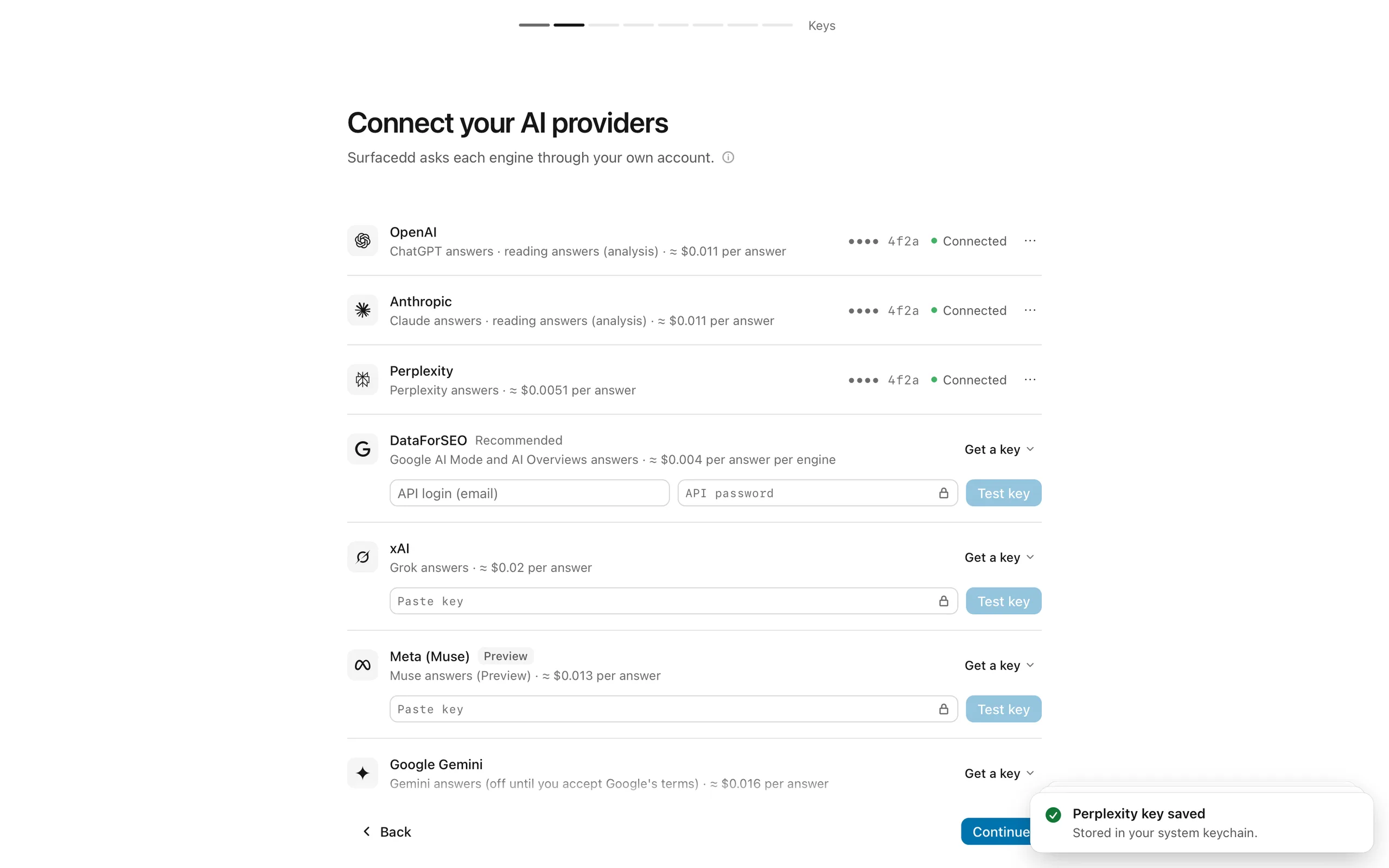
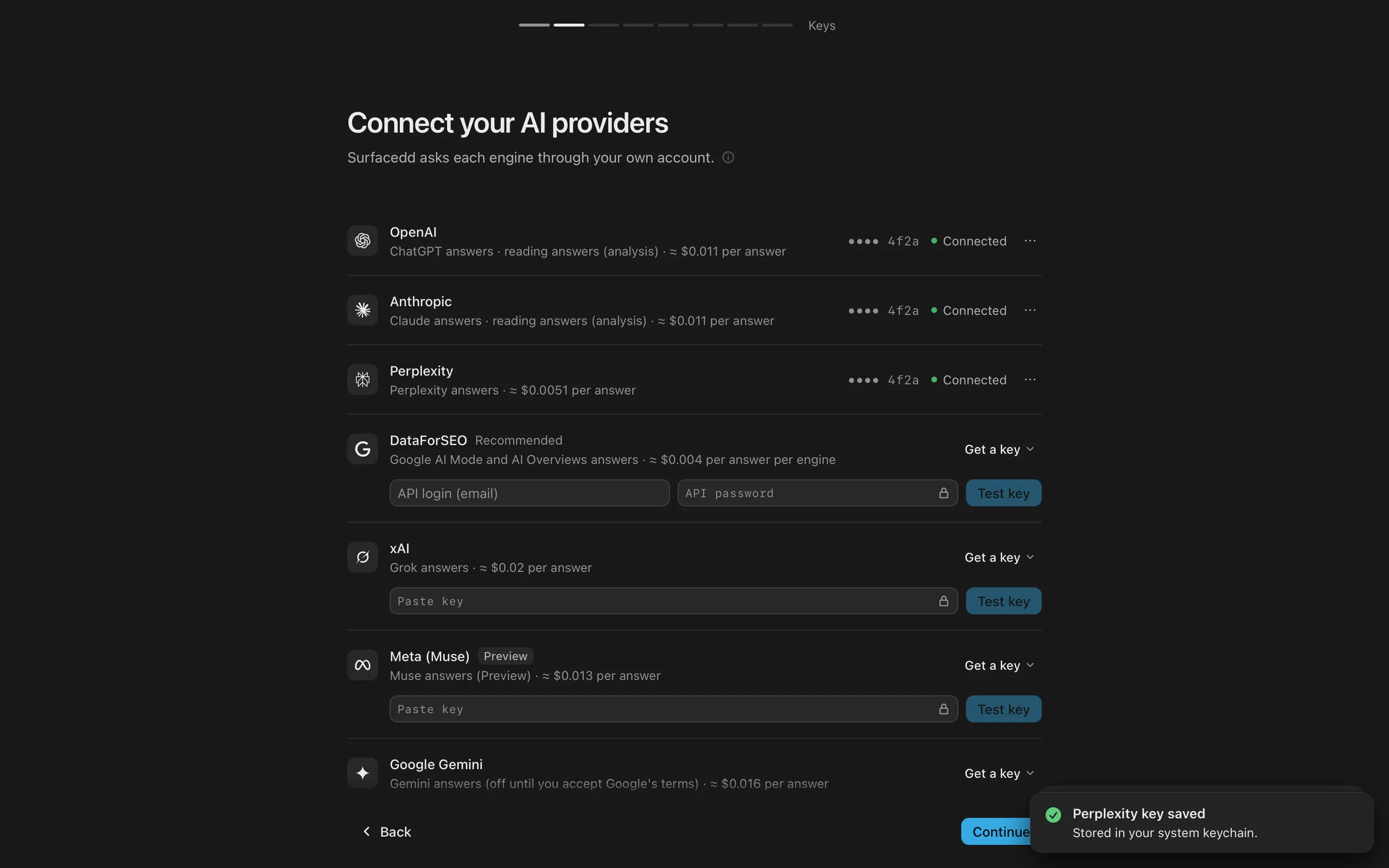
Next come provider keys. Each provider card has a free Test key check and shows what that provider powers and its cost per answer. Keys are saved only after a successful test.
Where Surfacedd keeps your data
| Mac | Windows (direct) | Windows (Store) | |
|---|---|---|---|
| Database | ~/Library/Application Support/com.surfacedd.app | %APPDATA%\com.surfacedd.app | Inside the Store package's own app-data folder |
| API keys | macOS Keychain | Windows Credential Manager | Windows Credential Manager |
Keys never go into the database, logs or our servers. Settings › Data & backups shows the database location, daily backups and workspace export.
Uninstall
- If you're moving to another computer, first open Settings › Licence and updates and choose Deactivate…. This frees one of your activations; your data stays and turns read-only.
- Mac: quit Surfacedd (⌘Q) and move it from Applications to the Trash. Windows: uninstall it from Settings › Apps.
- Uninstalling leaves your data folder in place, in case you reinstall. To remove it too, delete the folder listed above. See delete everything for removing brands and Humans profiles from inside the app first.
Troubleshooting
| What you see | Likely cause | What to do |
|---|---|---|
| The app won't open on an older Mac | macOS 13 or earlier | Update to macOS 14 Sonoma or later |
| "Apple cannot check … for malicious software" or "damaged" | The file was changed or came from somewhere other than surfacedd.com | Delete it, download again, compare the SHA-256 (Gatekeeper guide) |
| "Windows protected your PC" | The direct installer isn't code-signed | More info → Run anyway, or use the Store build |
| Blocked with no Run anyway | Smart App Control on Windows 11 | Use the Microsoft Store build (SmartScreen guide) |
| Licence step says the device limit is reached | Already active on 3 computers | Deactivate one from the device list (licence and devices) |
| Runs are disabled, banner says "Licence inactive" | The licence couldn't be confirmed, or was refunded or deactivated | Open Fix licence; viewing and exporting still work |
Related docs
Keep reading
- ProductDownload Surfacedd and see what AI says about your brandOne licence, both platforms, up to three computers. The app opens with a fictional sample workspace, so you can look around before you enter a key.Read
- DocsActivate your licence and start running reportsPaste the key once per computer, or open it from the purchase page. If the key is already on three computers, the app lists them so you can free one on the spot.Read
- DocsGet Surfacedd open on your Mac when Gatekeeper stops itSurfacedd is signed and notarized, so macOS should only ask once before it opens. Any other message means something specific; here is what each one means and what to do.Read
- DocsInstall Surfacedd on Windows without SmartScreen getting in the wayThe Microsoft Store build installs with no warning. The optional direct installer isn't code-signed, so SmartScreen warns once, and Windows 11's Smart App Control can block it outright.Read
How we research, write and correct pages: read our editorial policy.