Get your data back after a mistake, a crash or a new computer
Surfacedd makes a compacted copy of its database every day and before every upgrade, import, restore or reset. Each copy has a Restore button, and a restore can itself be undone.
By the Surfacedd teamUpdated 4 min readMarkdown
On this page
Short answer
Surfacedd saves a compacted copy of its database once a day while it runs and keeps the last seven, plus a copy before every upgrade, import, restore and reset. Click Restore next to any copy in Settings › Data & backups; your current data is saved first, so you can undo. API keys are never in a backup.
This page explains which backups Surfacedd makes on its own, where they are, and how to restore one, including onto a different computer.
What Surfacedd backs up on its own
Everything Surfacedd collects lives in one SQLite database, surfacedd.sqlite, in the app's data folder. The app makes three kinds of copies of it in a backups folder next to the database:
| Copy | When | File name | How many are kept |
|---|---|---|---|
| Daily | Once per day while Surfacedd is running, including when it sits in the menu bar or tray | surfacedd-YYYYMMDD.sqlite (local date) | The newest 7 |
| Before an upgrade | Before a new version changes the database structure | surfacedd-premigrate-….sqlite | The newest 3 |
| Before an import, restore or reset | Before a workspace import, a backup restore or a reset that keeps backups replaces your data | surfacedd-before-import-….sqlite | The newest 3 |
Each copy is made with SQLite's VACUUM INTO, which writes a consistent, compacted copy while the app keeps working. You don't need to pause runs.
The daily copy runs as part of a background job that checks every hour; if the app wasn't open on a given day, there is no copy for that day. A computer that's off all week will still have its last seven daily copies, just from older days.
Find your backups
- Open Settings › Data & backups.
- The Backups group lists every copy, newest first, with its date and time, its kind (daily, before an upgrade, or a safety copy made before an import, restore or reset), file name and size, and a Restore… button. If it says No backups yet, the first copy appears within a day of first use.
- Under Location, click Show in Finder (Mac) or Show in File Explorer (Windows) to open the data folder. The
backupsfolder is inside it.
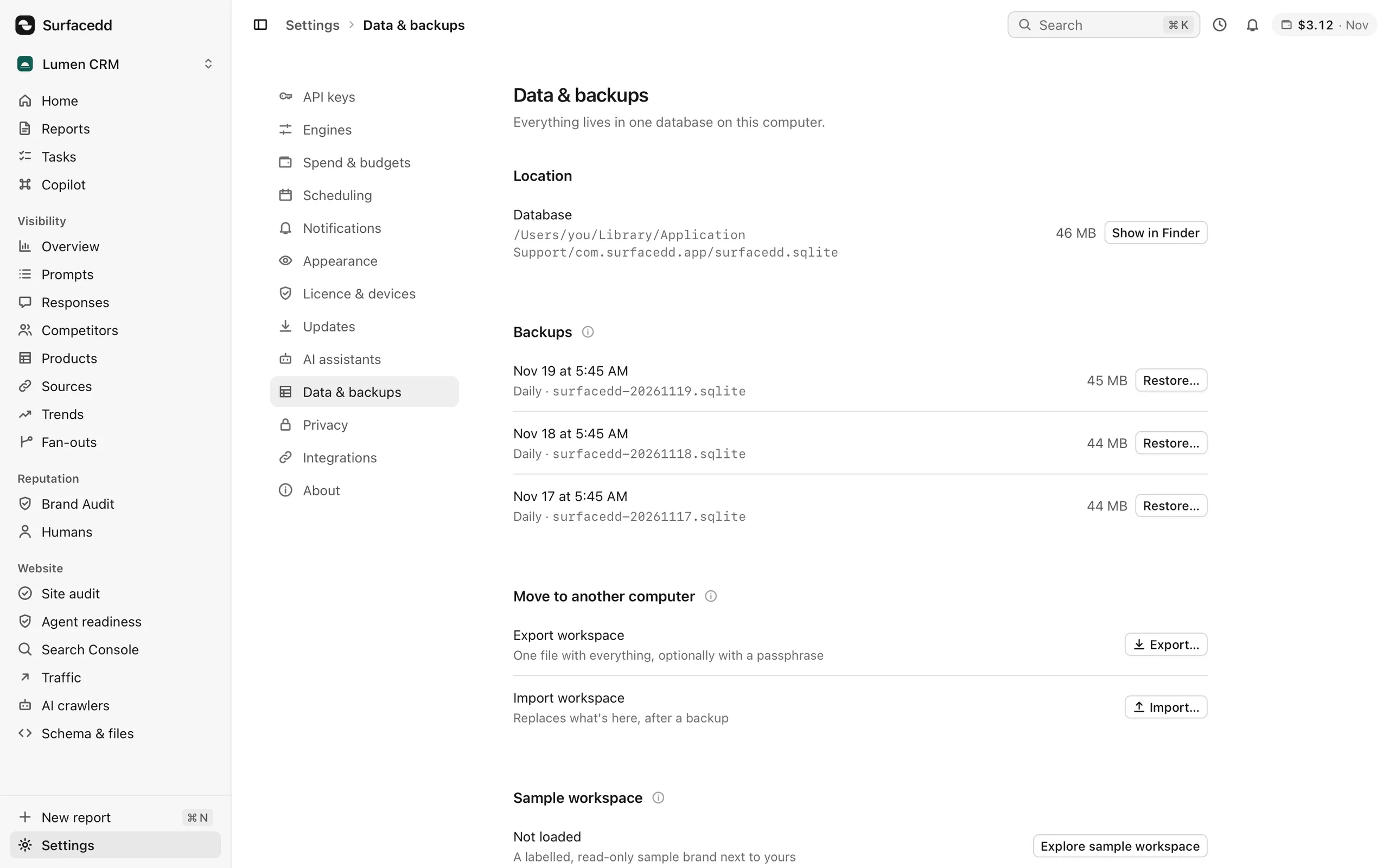
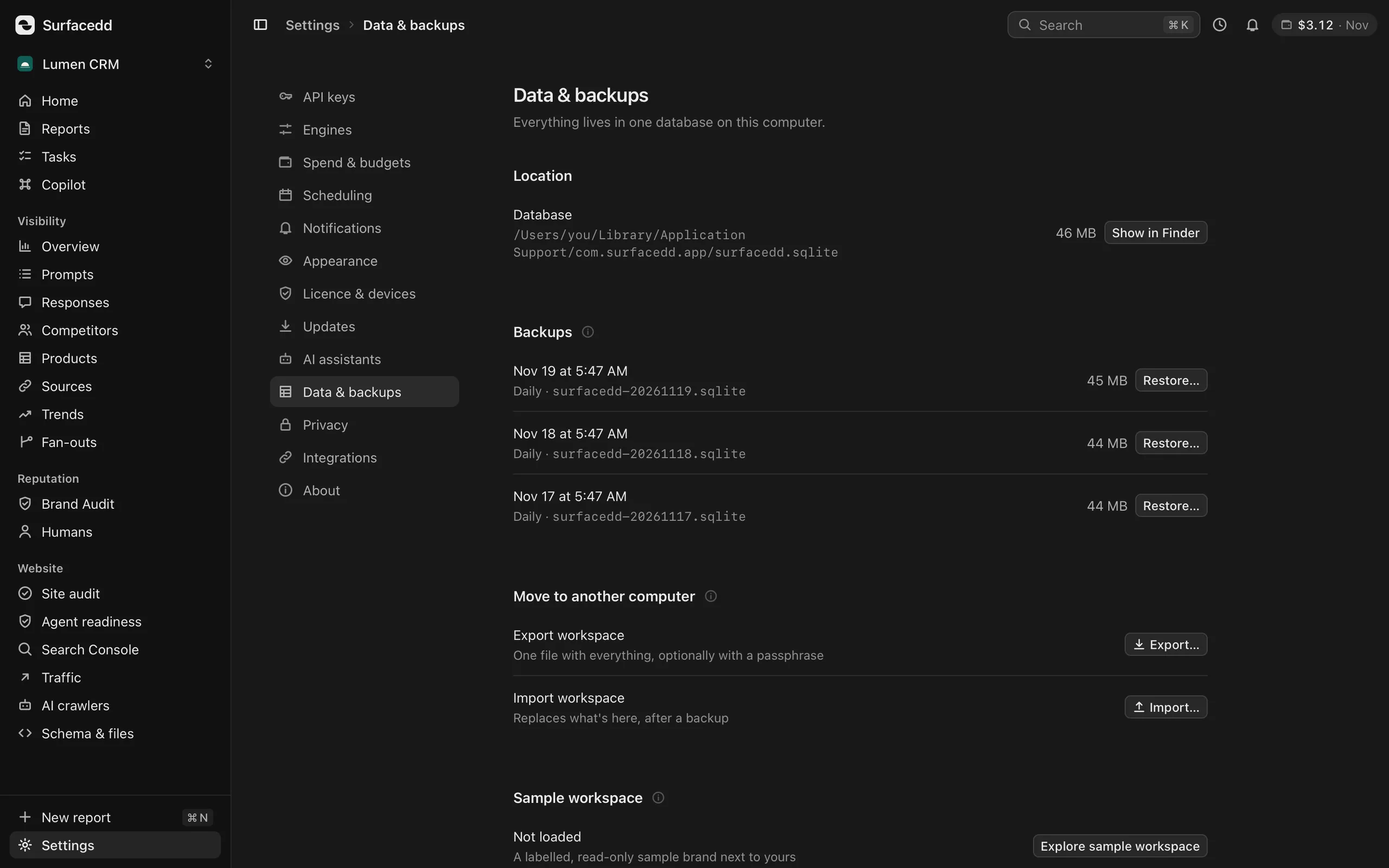
The data folder is ~/Library/Application Support/com.surfacedd.app on a Mac and %APPDATA%\com.surfacedd.app for the direct Windows installer. The Microsoft Store version keeps it in a folder Windows manages for the app, so use the button rather than looking for it by hand.
What a backup contains, and what it doesn't
A backup holds the whole database: brands, Humans profiles, reports, prompts, answers, citations, tasks, audits, crawler-log totals and settings.
It does not hold your API keys or your licence key. Those live in the operating system's keychain (Keychain on Mac, Credential Manager on Windows), not in the database.
Daily backups are not encrypted, just like the live database next to them. Surfacedd relies on your disk encryption for data at rest: FileVault on a Mac, BitLocker or Device Encryption on Windows. If you copy backups somewhere else, such as a USB drive or a shared folder, use Export workspace with a passphrase instead (see Import and export your data).
Restore a backup on this computer
A restore replaces the current workspace with the copy you pick, so first decide whether you need anything collected since that copy was made.
- Open Settings › Data & backups.
- In Backups, click Restore… next to the copy you want.
- Confirm with Restore. The app checks the copy, saves what you have now as a
surfacedd-before-import-…copy, then replaces the data in one step. A message names that safety copy.
To undo a restore, restore the safety copy the message named: it's at the top of the Backups list.
A restore is refused while a report is running: stop the run or let it finish, then restore. API keys, the licence and the key status on this computer stay as they are, because they aren't in backups.
A copy that isn't in the backups folder, such as one from a disk backup or another computer, is restored with Import… next to Import workspace instead; it works the same way.
Restore on a new computer
- On the old computer, if it still runs, use Export workspace for the newest data. If it doesn't, copy the newest file from its
backupsfolder, for example from a disk backup such as Time Machine or Windows File History. - Install Surfacedd on the new computer and activate it with your key (see Activate your licence). If the old computer can't be deactivated, free its slot from Manage devices.
- On the new computer, Import workspace and pick the file.
- Add your API keys again in Settings › API keys and test them.
- Check your schedules: they come across with the data and run on the new computer. A slot that passed while you were moving follows your missed-run choice in Settings › Scheduling.
Copies from an older version of Surfacedd are upgraded during the import. A file from a newer version is refused until you update the app.
Troubleshooting
| Problem | Cause | Fix |
|---|---|---|
| No backups yet | The app hasn't completed its first daily copy | Leave it running, or make one now with Export workspace |
| "A report is running" when restoring | A run is still writing answers | Stop it from the run sheet, or wait for it to finish, then restore |
| A day is missing from the list | Surfacedd wasn't running that day | Nothing to fix; turn on launch at login in Settings › Scheduling if you want daily copies reliably |
| This file can't be imported | The backup is from a newer version | Update Surfacedd, then import again |
| The data folder is large | Long history with many answers and backups | Backups are compacted copies; delete old reports or brands to shrink future copies |
| Keys missing after a restore | Keys are never in backups | Add them in Settings › API keys |
Related docs
- Import and export your data: passphrase-protected workspace files.
- Delete everything: what deleting removes, including from backups.
- Licence and devices: moving your licence slot.
Keep reading
- DocsTake your data with you: exports, workspace files and importsEverything Surfacedd collects is already on your computer. Exports give it to you in formats other tools read, and a workspace file moves all of it to another machine.Read
- DocsDelete a brand, a person or everything, and know what's leftBrands wait 48 hours in case you change your mind. A Humans profile goes at once. This page also lists the copies that outlive a delete, so nothing is left by surprise.Read
- DocsUse one licence on three computers, and move it when you need toOne key, three computers at a time, any mix of Mac and Windows. Free a slot from the app or the website, and nothing you collected is ever held back by a licence problem.Read
- ProductTrack AI visibility without handing your strategy to another serverYour prompts, answers, competitors and Google data stay in a database on your own computer. This page lists every request the app makes, where it goes and what it carries.Read
How we research, write and correct pages: read our editorial policy.