Activate your licence and start running reports
Paste the key once per computer, or open it from the purchase page. If the key is already on three computers, the app lists them so you can free one on the spot.
By the Surfacedd teamUpdated 4 min readMarkdown
On this page
Short answer
To activate Surfacedd, paste the licence key from your purchase email into the first setup screen, or click Open in Surfacedd on the purchase page and confirm. One licence covers three computers at once. If all three are in use, the app lists them so you can deactivate one and finish activating.
This page covers getting from "installed" to "able to run reports": where the key comes from, the two ways to activate, what happens when a key is already on three computers, and every message the activation screen can show.
You can open Surfacedd without a licence. The sample workspace, a fictional brand with realistic data, works straight away, so you can look around before you buy. Running reports, schedules and anything that calls a paid API needs an active licence.
Where your key comes from
After checkout, the purchase confirmation page shows your licence key once, together with an Open in Surfacedd button. The key is also in your purchase email. Keys are case-sensitive, so copy them rather than retyping.
One licence works on 3 computers at the same time, in any mix of Mac and Windows. The Mac download, the Microsoft Store version and the direct Windows installer all take the same key.
Option 1: open the key from the purchase page
- Install Surfacedd first (see Install Surfacedd).
- On the purchase confirmation page, click Open in Surfacedd. Your browser asks whether to open the app; allow it.
- Surfacedd shows Activate this licence key? with the last characters of the key. The link never activates anything by itself: click Activate only if you opened the link from your own purchase. Don't activate leaves your current licence as it is.
The link uses the surfacedd://activate?key=… address. If you copy the whole link instead of just the key, the paste field accepts that too and pulls the key out of it.
Option 2: paste the key
- Open Surfacedd. During first setup, the licence step asks for your key. Later, use Settings › Licence & devices.
- Paste the key into Paste your licence key, or click Paste to read it from your clipboard.
- Click Activate.
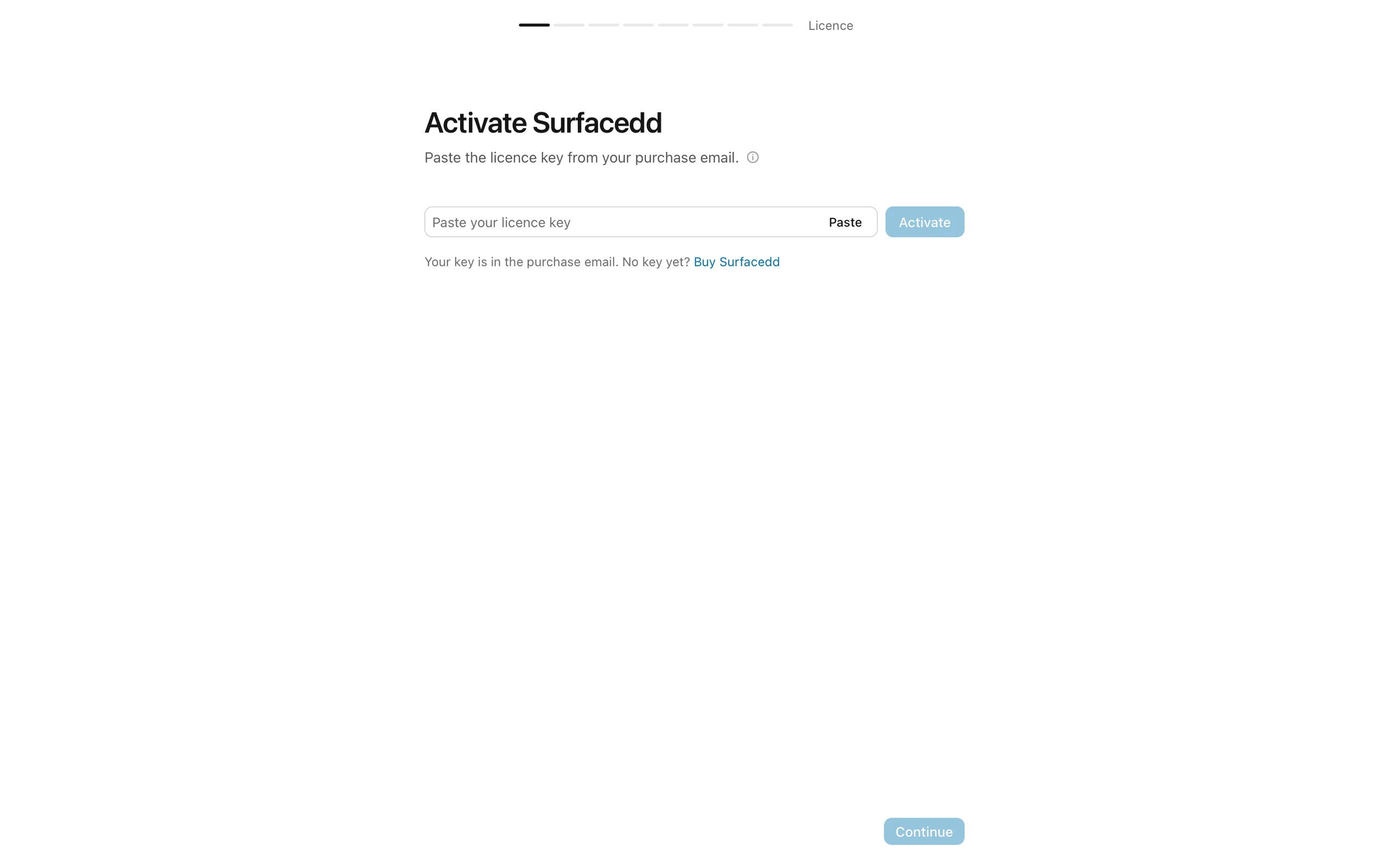
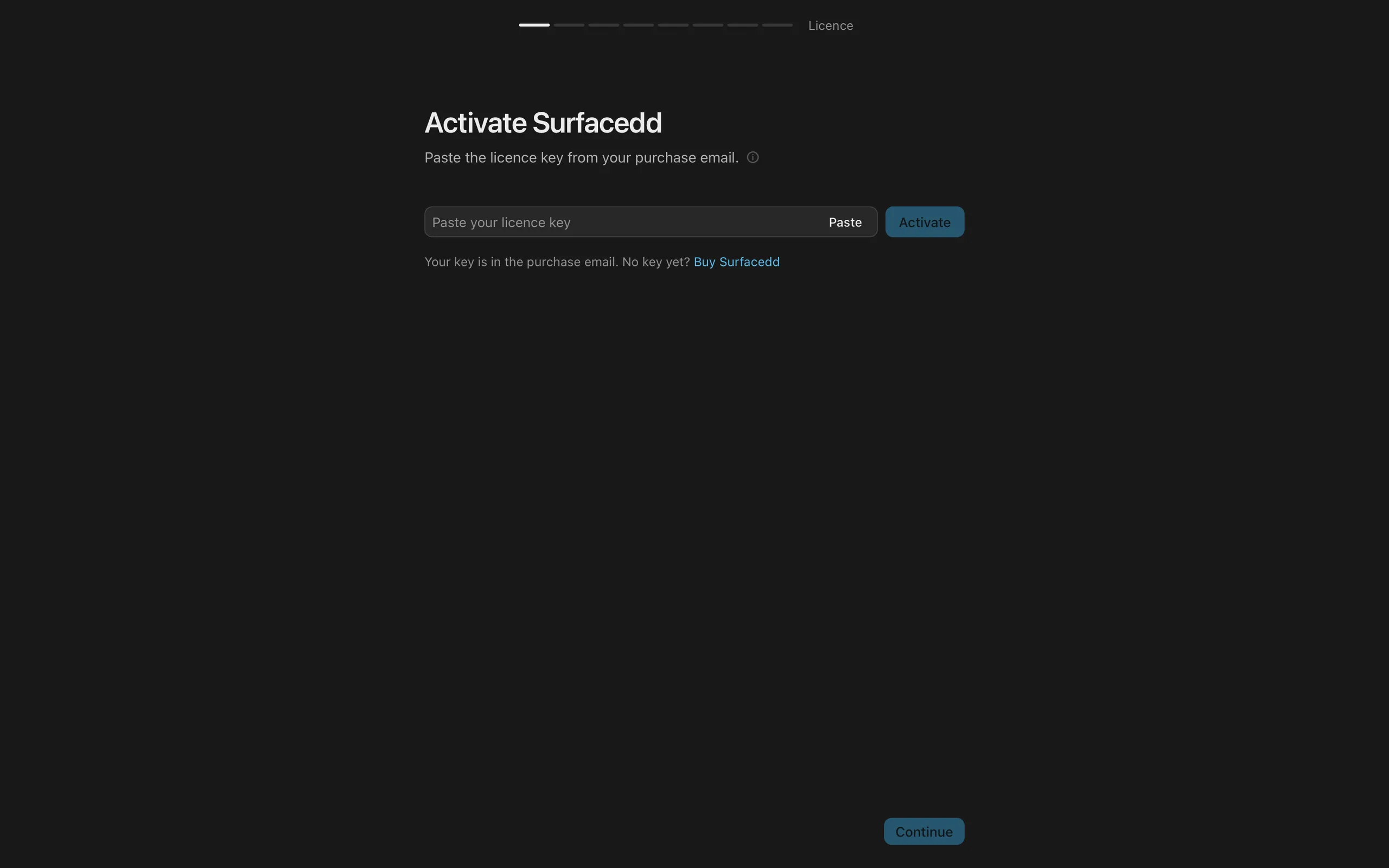
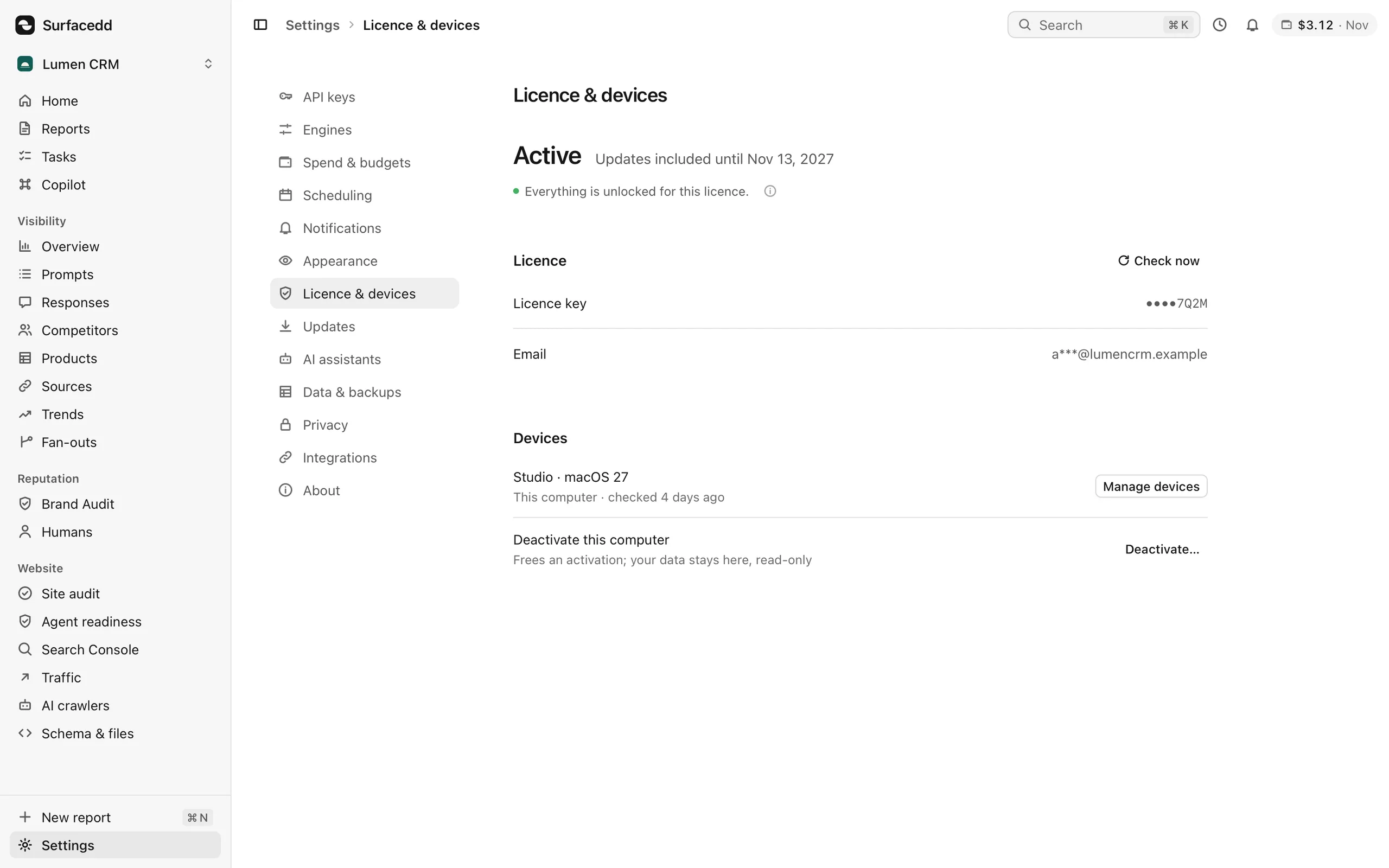
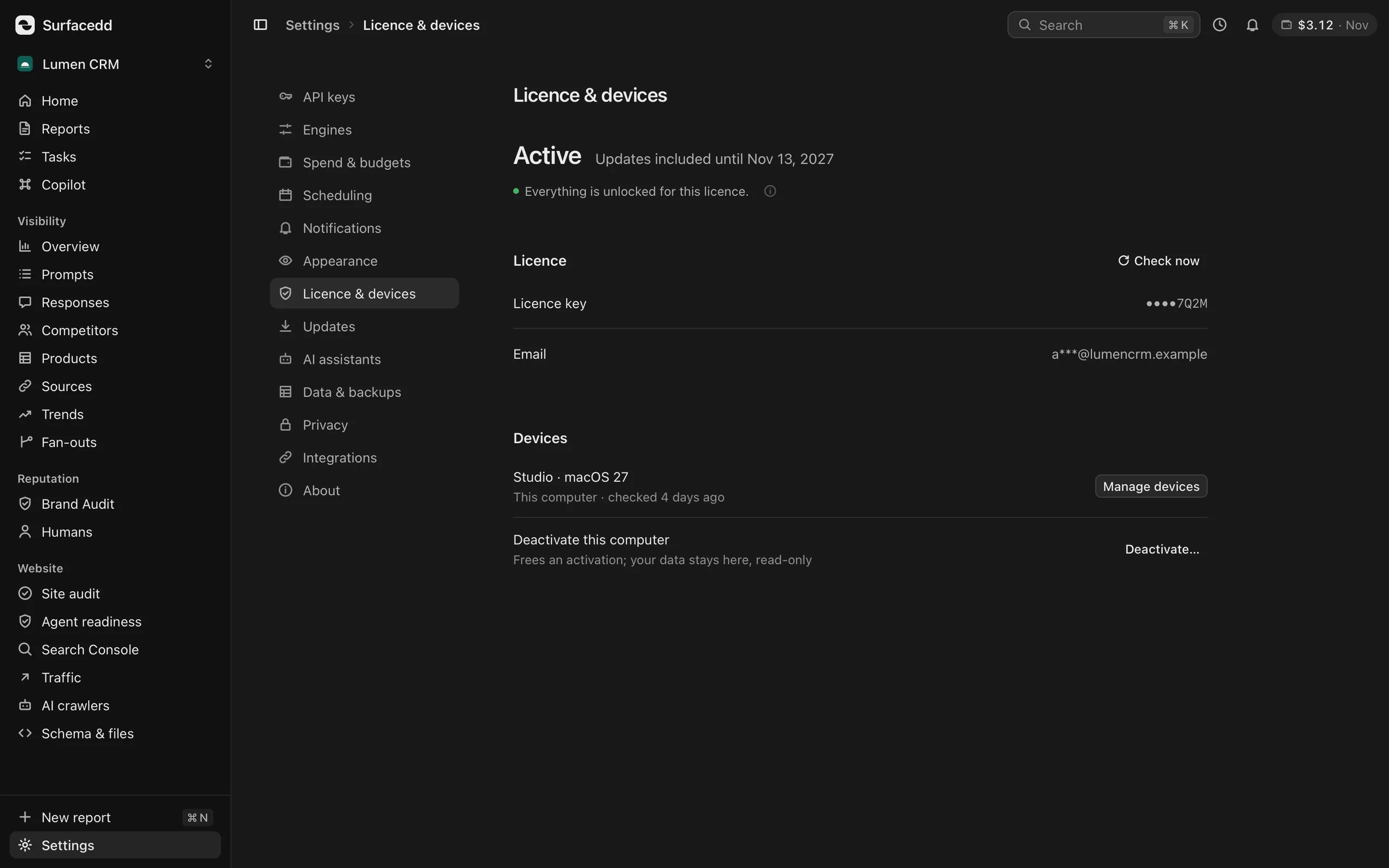
When it works, you see Licence activated and the date your included updates run until. The app registers this computer under a name made from its host name and operating system, such as "Studio · macOS 27", so you can tell your devices apart later.
If the key is already on three computers
When all 3 activations are in use, activation doesn't fail outright. The app opens a dialog titled This licence is active on too many computers, listing each device with the date it was activated.
- Find a computer you no longer use. The one you're on is marked This computer.
- Click Deactivate next to it.
- The app retries straight away and this computer activates.
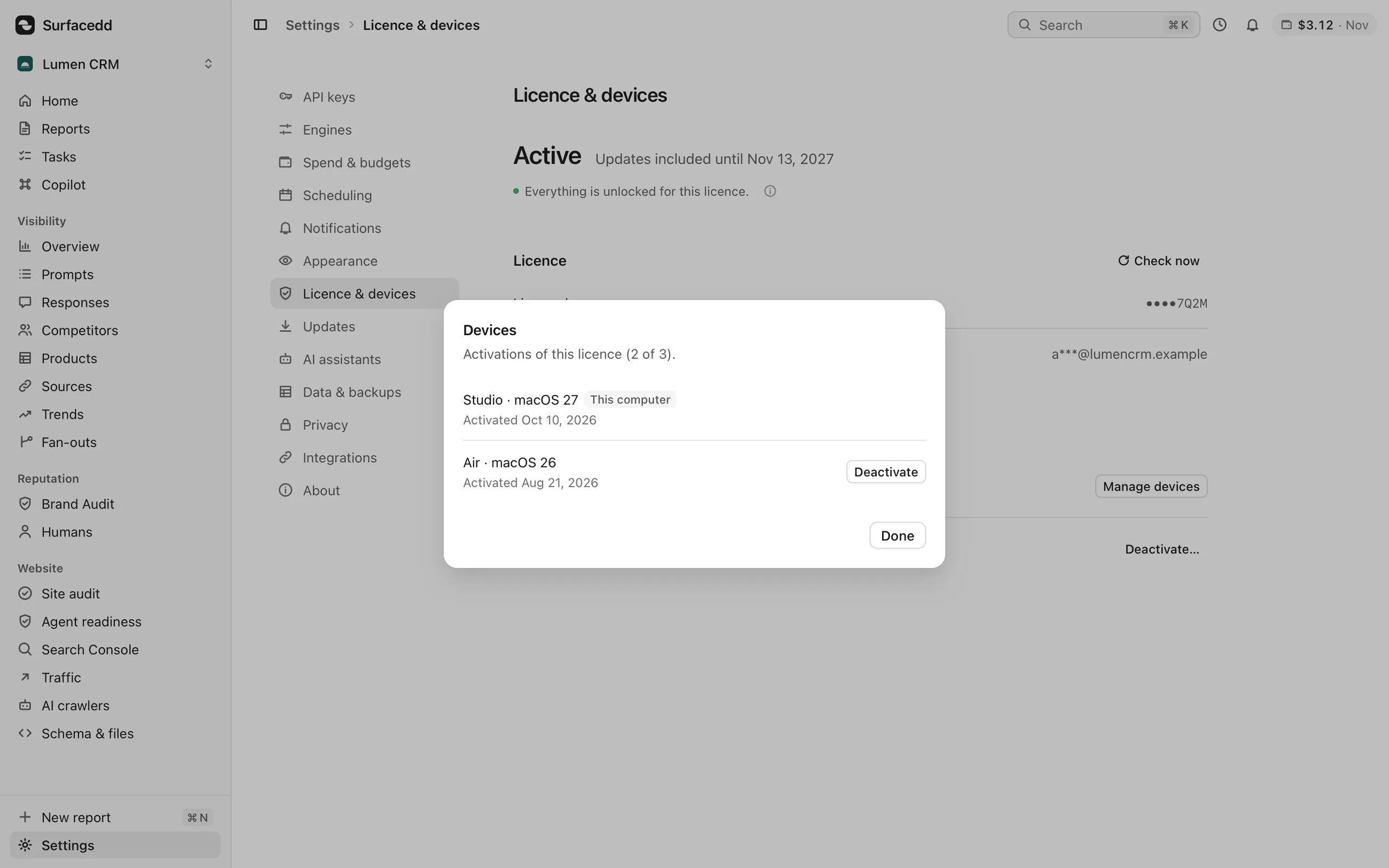
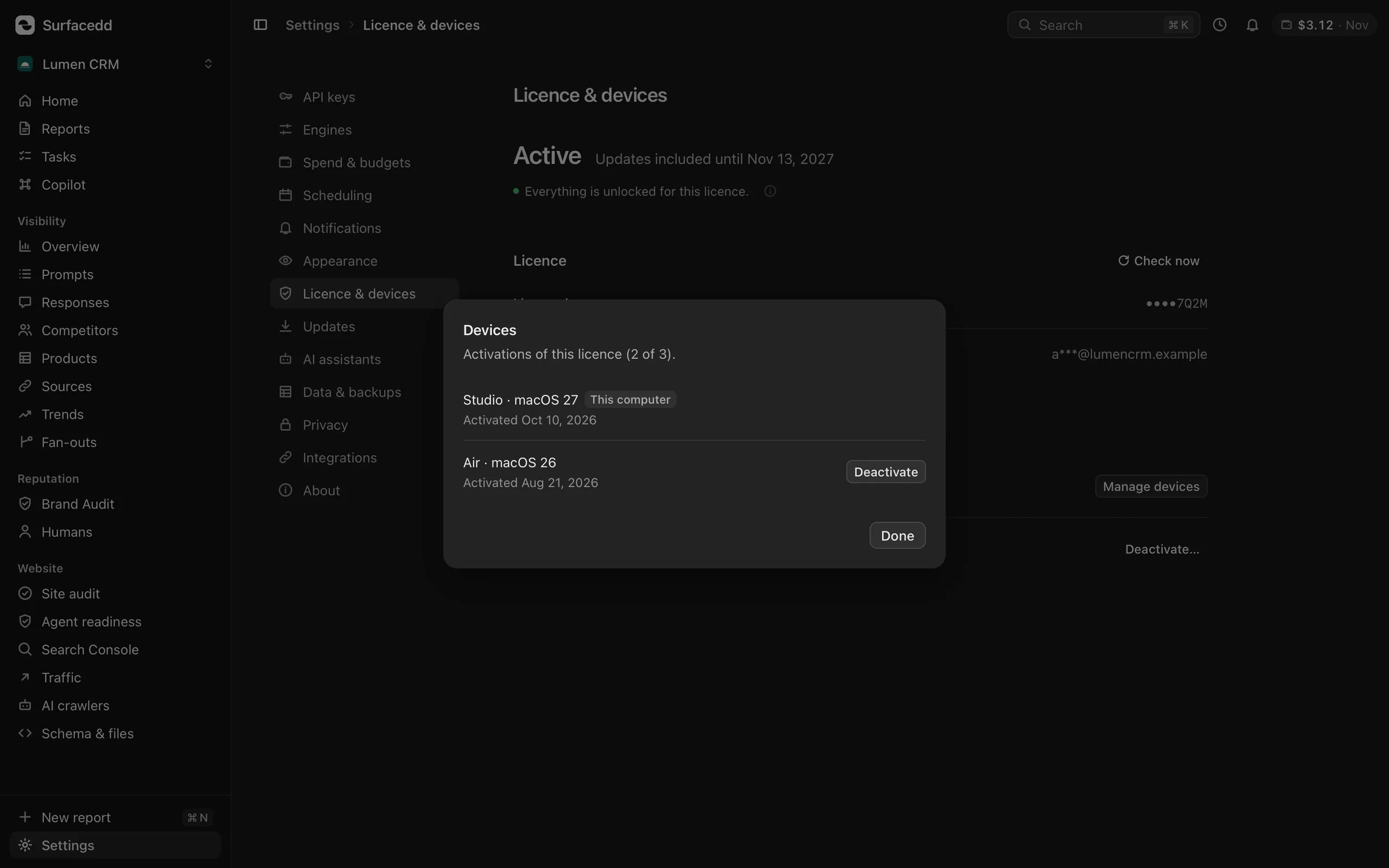
Deactivating frees the slot. The other computer keeps all its data, but becomes read-only until it is activated again. If the old computer is lost or wiped, you can do the same from any browser on the Manage devices page with your licence key.
What the app checks after activation
Activation stores your key and this computer's activation ID in the operating system's keychain (Keychain on Mac, Credential Manager on Windows). The app then fetches a signed licence token and checks it offline from then on. The token is tied to this computer, so a copy on another machine is rejected.
It checks in with our licence server when you launch it and about once a day once a check is due. It doesn't contact us for each action. If it can't reach the server, it keeps working normally for 30 days from the last successful check. Settings shows the date it works offline until.
Read-only: what it means and how to fix it
If the licence can't be confirmed, Surfacedd switches to read-only instead of stopping. A banner reads Licence inactive — viewing and exporting still work. New runs and schedules are paused. You can still view, search, filter and export everything, edit local details such as aliases and tasks, and let AI assistants read your data over MCP. New runs, schedules and paid calls are paused until the licence is active again. Nothing is deleted.
Settings › Licence & devices tells you why, and Check now re-checks immediately.
| What Settings says | Why | What to do |
|---|---|---|
| The licence couldn't be checked for 30 days | No successful check in the offline period | Connect to the internet and click Check now |
| Your computer's clock is behind the last licence check | The system date was set back | Set the correct date and time, then Check now |
| The licence server says this key or activation is no longer valid | Refunded, disputed, or this computer was deactivated from another device | Activate again with a valid key, or contact us |
| Activated, but the licence couldn't be confirmed yet | The first check after activating didn't complete | Click Check now |
Activation messages and fixes
| Message | Meaning | Fix |
|---|---|---|
| We couldn't find that key | Typo, a missing character, or a different product's key | Copy the key again from the purchase email; keys are case-sensitive |
| This key has been disabled | The purchase was refunded or the key was disabled | If that's a mistake, reply to your purchase email or write to hello@surfacedd.com |
| This licence is active on too many computers | All 3 activations are in use | Deactivate one in the dialog, or at Manage devices |
| Couldn't reach the licence server | No connection, or our server didn't answer | Activation needs to reach the server once; check your connection and try again |
| Nothing happens when you click Open in Surfacedd | The app isn't installed yet, or the browser blocked the prompt | Install the app, or copy the key and paste it instead |
No licence yet
There is no free trial; the sample workspace is there so you can see the app with realistic data first. If Surfacedd turns out not to suit you, you can ask for a refund within 14 days of purchase, and the licence becomes read-only at its next check. Prices are on the pricing page.
Related docs
- Licence and devices: the licence states, three devices and moving to a new computer.
- Updates and renewal: what your included year of updates covers.
- Install Surfacedd: Mac and Windows downloads.
Keep reading
- DocsUse one licence on three computers, and move it when you need toOne key, three computers at a time, any mix of Mac and Windows. Free a slot from the app or the website, and nothing you collected is ever held back by a licence problem.Read
- DocsInstall Surfacedd and reach your first report in minutesPick the build for your computer, open it, and either explore the fictional sample workspace or activate your licence and start setup.Read
- DocsKeep every feature you paid for, and renew only if you want what's newYour licence includes a year of updates. Everything released in that year stays yours in every later version, and a renewal adds a year from whichever is later: today or your current end date.Read
- ProductGet AI-visibility answers for pennies, not a subscriptionBuy the app once. You pay AI providers directly for each answer you collect, and Surfacedd shows the price of every run before it starts.Read
How we research, write and correct pages: read our editorial policy.