Take your data with you: exports, workspace files and imports
Everything Surfacedd collects is already on your computer. Exports give it to you in formats other tools read, and a workspace file moves all of it to another machine.
By the Surfacedd teamUpdated 4 min readMarkdown
On this page
Short answer
Surfacedd exports reports as PDF or JSON, tables as CSV or JSON and every answer of a brand as NDJSON, all written to a file you pick. To move everything, Settings › Data & backups › Export workspace saves one file, optionally passphrase-encrypted. Importing it on another computer replaces that workspace after a safety backup. API keys are never exported.
This page covers getting data out of Surfacedd and into another copy of it: the export formats, the workspace file that moves everything, and importing that file.
Your data is already yours
Surfacedd keeps everything it collects in one SQLite database on your computer. We never hold a copy, so exporting is about convenient formats, not about getting your data back from a vendor. Every export is written by the app to a location you pick in your system's save dialog; the app can't write a file anywhere you didn't choose.
Exports keep working when the licence is inactive. They are on the list of things the updates rule never holds back.
The formats at a glance
| Format | Where | What it contains | Use it for |
|---|---|---|---|
| Report › Export › Report (PDF) | The report's overview, competitors and cited sources, plus a methodology appendix per engine: model, collection mode, whether location was applied, answer count and dates | Sending to a team or client | |
| CSV | Export menu on Responses, Prompts, Competitors, Sources and Products | The table on screen, with the filters on screen. UTF-8 with a byte-order mark so Excel keeps accents; ISO dates | Spreadsheets |
| JSON | Same Export menus › a table › JSON; Report › Export › Report (JSON) | The same table as typed records (numbers as numbers, null for missing), or a whole report, wrapped with the filters used | Scripts, notebooks, other tools' APIs |
| NDJSON | Export menu › All answers (NDJSON) | Every answer for the brand, one JSON object per line | Scripts, notebooks, data warehouses |
Workspace (.sqlite or .surfacedd) | Settings › Data & backups | The whole database: brands, reports, prompts, answers, settings | Moving to another computer, archiving |
The CSV tables available are responses, prompts, competitors, prompts competitors win, cited pages, cited domains, outreach opportunities, fan-out searches, products and product mentions. Cells that a spreadsheet could run as a formula are prefixed with an apostrophe, because prompt text and AI answers come from outside your control. Column-by-column details are in Exports.
What's in the NDJSON file
Each line is one answer. The fields are:
answer_id,run_id,report_id,prompt_id,promptandanswer(the full text);engine,model,market_id,collection_mode,location_applied,refusal,latency_ms,cost_usdandcreated_at;mentions: each brand named, with its relation (you, a competitor, a publisher…), position, list rank, whether it was recommended, sentiment, how it was matched and whether it was a namesake;citations: each source with its order, URL, title, host and whether it was cited or only read;fanouts: the searches the engine ran;product_mentions: products named, their owner, rank and whether they were recommended.
The file is written while the database is read, so a brand with years of history doesn't need to fit in memory.
Copy one answer as evidence
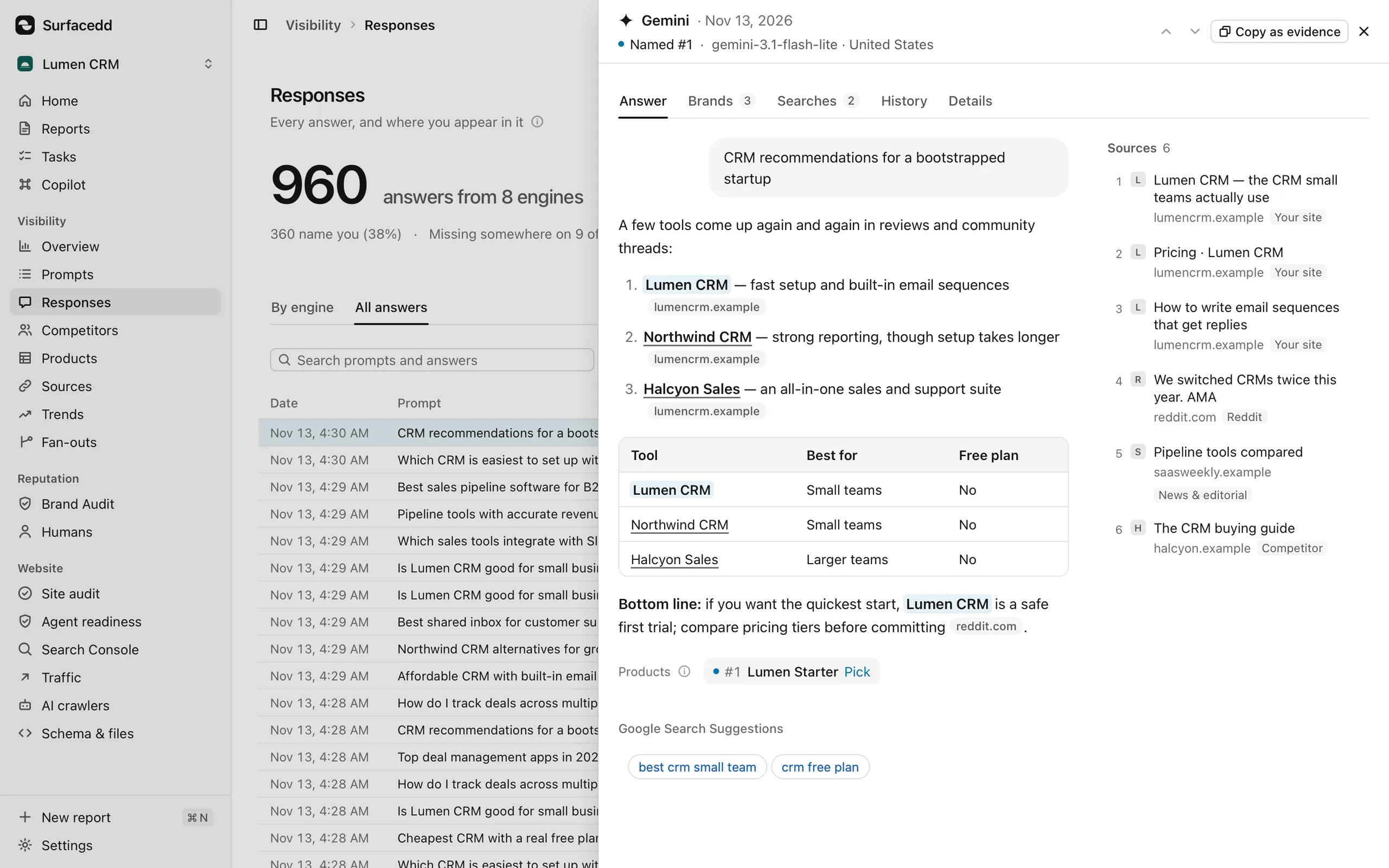
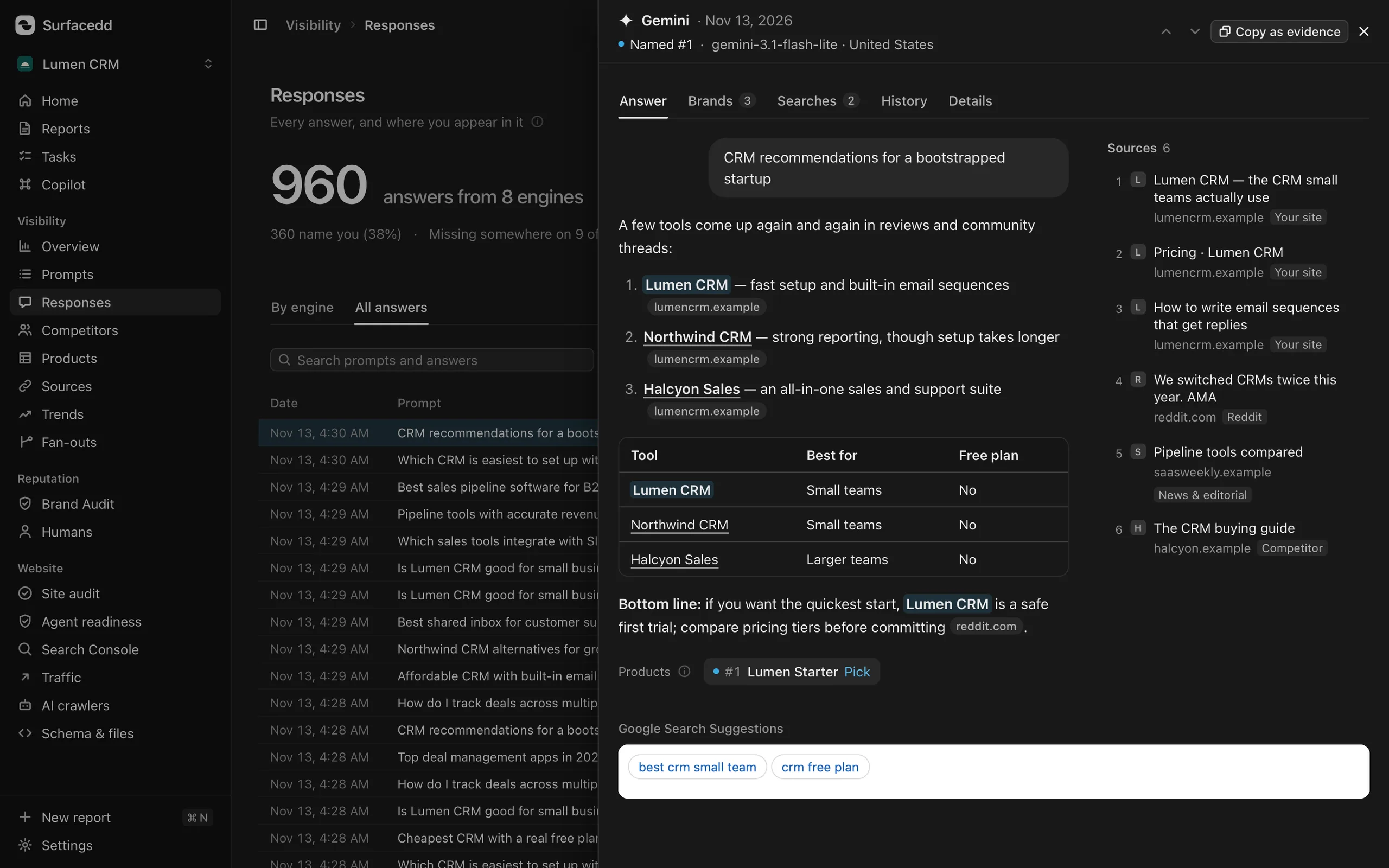
In the answer drawer, Copy as evidence copies the answer as Markdown with its timestamp, engine, model and sources. Use it when you need to show exactly what an engine said and when, for example in a correction request.
Export a whole workspace
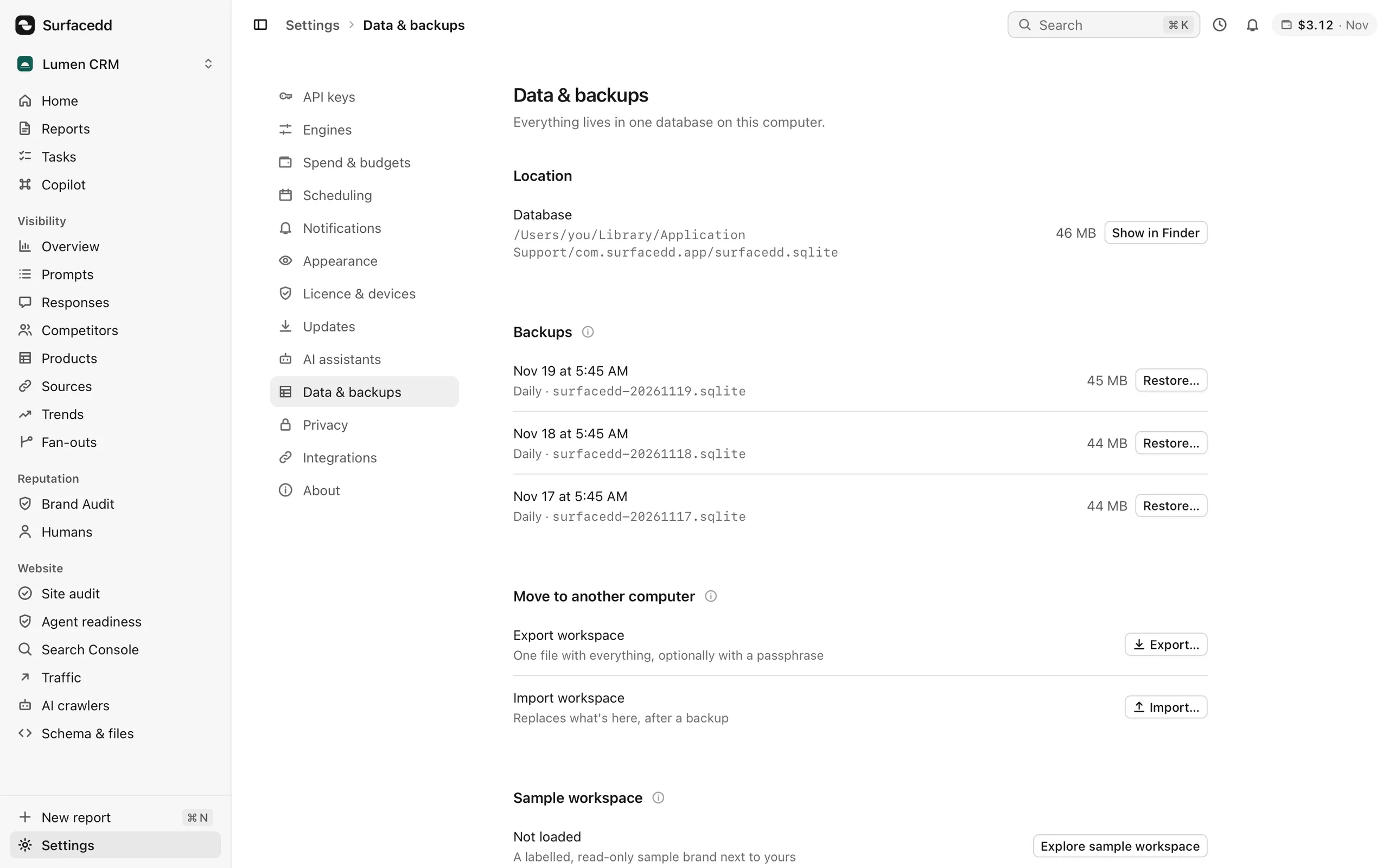
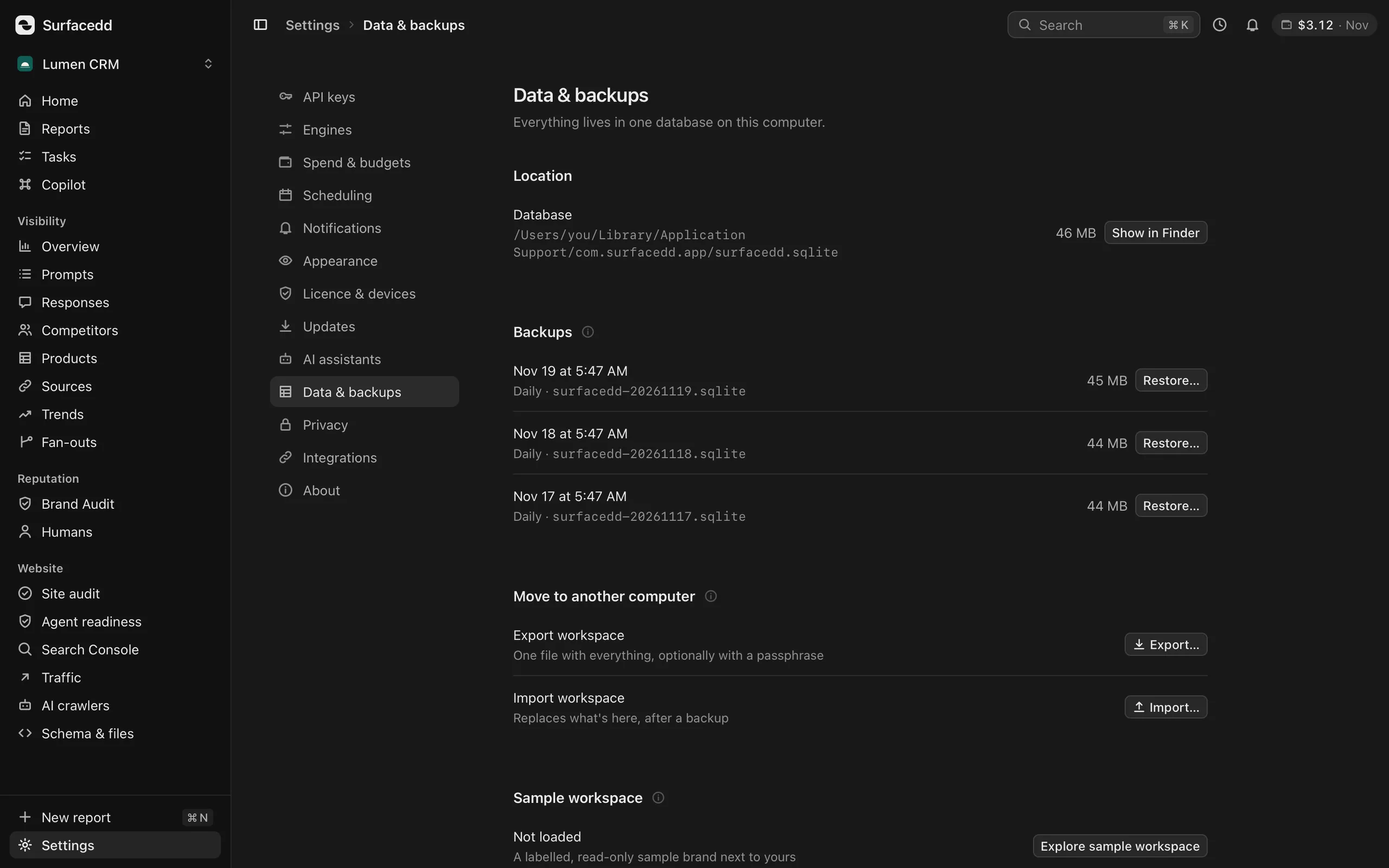
- Open Settings › Data & backups.
- Under Move to another computer, click Export… next to Export workspace.
- Choose whether to Protect with a passphrase. A passphrase must be at least 8 characters, and you type it twice.
- Pick where to save. The file is named
Surfacedd <date>.sqlite, orSurfacedd <date>.surfaceddwith a passphrase.
Without a passphrase, the file is a compacted copy of your database made with SQLite's VACUUM INTO, which any SQLite tool can open. With a passphrase, the same copy is encrypted in the open age format: the passphrase is stretched with scrypt and the contents are sealed with ChaCha20-Poly1305. The unencrypted copy exists only briefly inside the app's own data folder and is deleted once the encrypted file is written.
Surfacedd can't recover a forgotten passphrase. Keep it in your password manager.
What the workspace file leaves out: your API keys and your licence. They stay in this computer's keychain.
Import a workspace
- On the other computer, open Settings › Data & backups and click Import… next to Import workspace.
- Pick a
.sqliteor.surfaceddfile. If it's protected, enter its passphrase. - Confirm. Importing replaces everything in this workspace; it does not merge.
Before replacing anything, the app checks the file in a scratch folder: it must be a Surfacedd workspace, and it's upgraded to the current database version there first. Then it saves a safety copy of your current workspace in the backups folder (the newest three are kept), and swaps the data in one transaction. If any step fails, your current data is untouched.
After the import, add your API keys in Settings › API keys; key settings on the new computer are kept as they were. Search and summary figures are rebuilt automatically.
Import server logs
For AI crawler analytics, drop server log files into Website › AI crawlers. Nginx and Apache combined logs, Cloudflare Logpush JSON, JSON lines and CSV are accepted, including gzipped files up to 2 GB. Logs are streamed and only daily totals per bot are stored; IP addresses are not kept. See AI crawler analytics.
Troubleshooting
| Message | Cause | Fix |
|---|---|---|
| This export is protected with a passphrase. Enter it to import. | The file is a .surfacedd export | Enter the passphrase it was saved with |
| The passphrase is rejected | Wrong passphrase for this file | Check your password manager; there is no recovery |
| This file isn't a Surfacedd workspace export. | Another SQLite file, or a damaged one | Export again from the source computer |
| This file can't be imported | Usually a file from a newer version of Surfacedd | Update this copy of the app first |
| Use a passphrase of at least 8 characters. | Passphrase too short | Choose a longer one |
Related docs
- Exports: every CSV column and the PDF layout.
- Backups and restore: daily copies and restoring one.
- Licence and devices: moving your licence to a new computer.
Keep reading
- DocsTake your AI visibility data anywhere: PDF, CSV, JSON or every answerExports are written by the desktop app to a file you choose. Nothing is uploaded, and every export uses the filters on screen.Read
- DocsGet your data back after a mistake, a crash or a new computerSurfacedd makes a compacted copy of its database every day and before every upgrade, import, restore or reset. Each copy has a Restore button, and a restore can itself be undone.Read
- DocsUse one licence on three computers, and move it when you need toOne key, three computers at a time, any mix of Mac and Windows. Free a slot from the app or the website, and nothing you collected is ever held back by a licence problem.Read
- ProductTrack AI visibility without handing your strategy to another serverYour prompts, answers, competitors and Google data stay in a database on your own computer. This page lists every request the app makes, where it goes and what it carries.Read
How we research, write and correct pages: read our editorial policy.