See who AI recommends in your category, in one first report
Guided setup turns your website into a brand profile and nine buyer questions, asks the engines you have keys for, and shows the cost before it starts.
By the Surfacedd teamUpdated 4 min readMarkdown
On this page
Short answer
Your first Surfacedd report takes about ten minutes: activate, add at least one API key, enter your website, review nine suggested buyer prompts, pick engines and confirm the estimated cost. A run usually finishes in a minute or two and shows how often AI named you, who it named instead and which pages it read.
This page walks through guided setup, from an empty app to a first report you can act on. Every step can be changed later, and setup can be resumed from Home ("Finish setup") if you close the window halfway.
Before you start
You need three things:
| What | Why | Where to get it |
|---|---|---|
| An activated licence | Runs need an active licence; without one you can still explore the sample workspace | Activate your licence |
| One key that can read answers (OpenAI or Anthropic) | It powers the engine and the analysis step that reads every answer | OpenAI key or Anthropic key |
| Your website address | Setup reads your home page to suggest a name, categories, aliases and competitors | — |
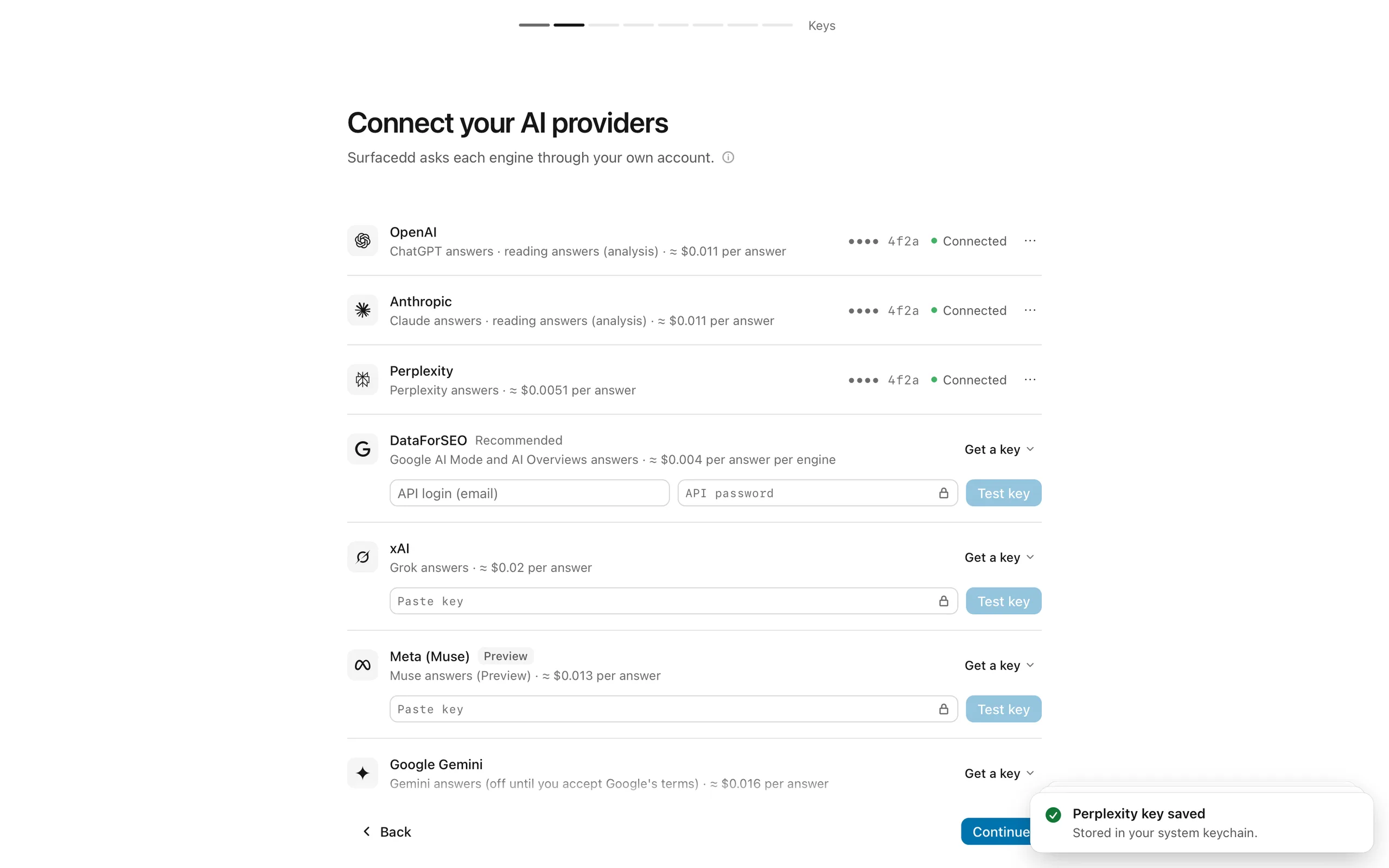
For a wider first picture, add Perplexity and DataForSEO as well (DataForSEO powers Google AI Mode and AI Overviews). Keys are tested for free and saved to your system keychain, not to the database.
Step 1: activate and connect your AI providers
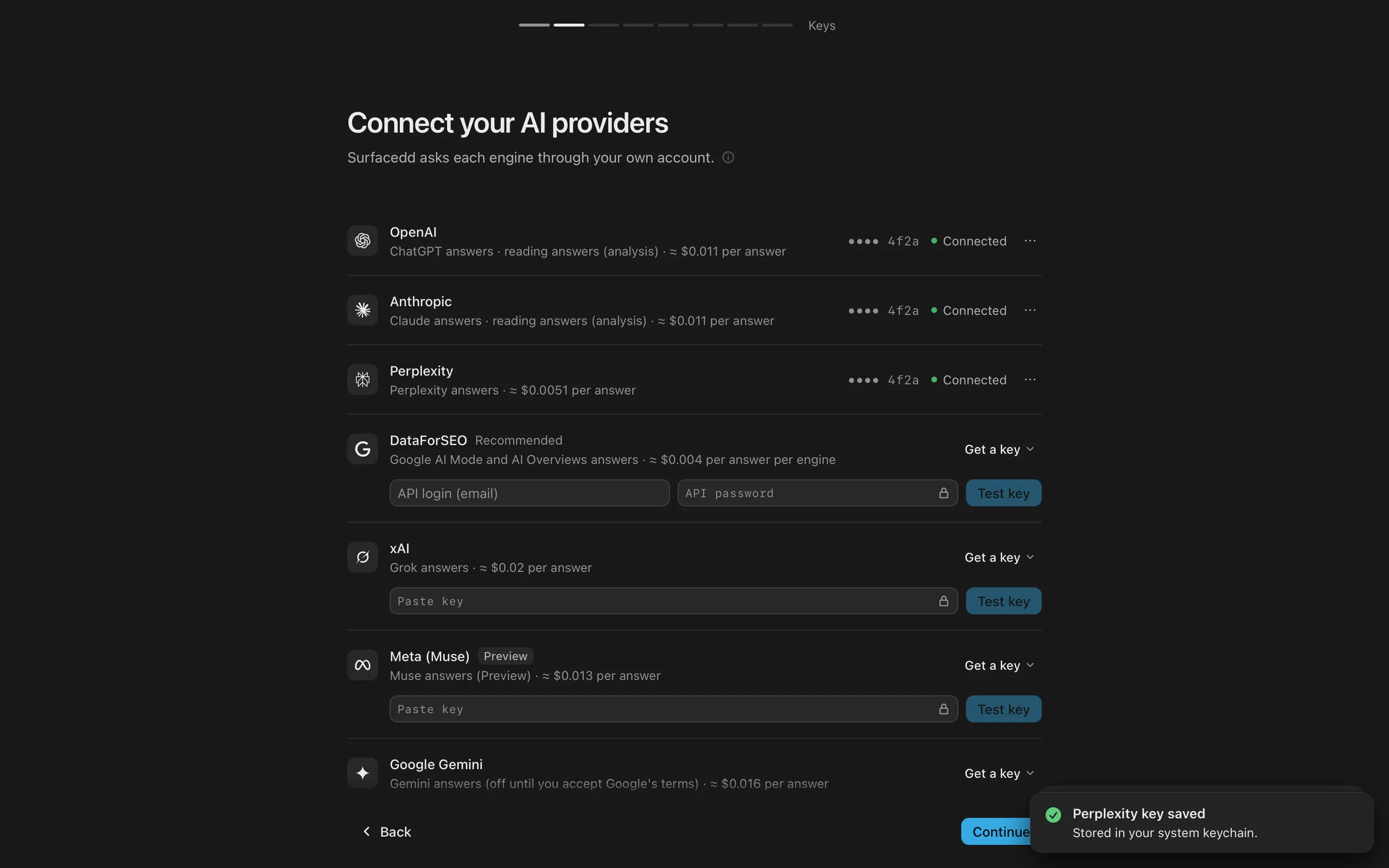
Paste the licence key from your purchase email. One licence works on up to 3 of your computers. Then open each provider card, paste a key and press Test key. Only keys that pass the test are saved.
Step 2: tell Surfacedd what you are tracking
Choose what you track (products or services, a local business, clients, or yourself), then enter the website. Surfacedd fetches the home page and up to eight linked pages from your computer and makes one small call to your analysis model to suggest a name, categories, aliases and competitors. The cost is shown before that call. If the site can't be read, the app says why and lets you describe the business in a sentence instead.
Review the suggestions carefully. Aliases are the names Surfacedd looks for in answers, so add common spellings and product names, and remove anything too generic. A wrong alias inflates your visibility; a missing one hides real mentions. Changing aliases later triggers a free recount of every past answer.
Step 3: choose where your customers are
Add a country or city. Google AI Mode uses the exact location; the other engines use an approximate one, and engines without location control are labelled "not applied". Each market asks the same questions in its own language. See markets and location for the per-engine detail.
Step 4: review the prompts
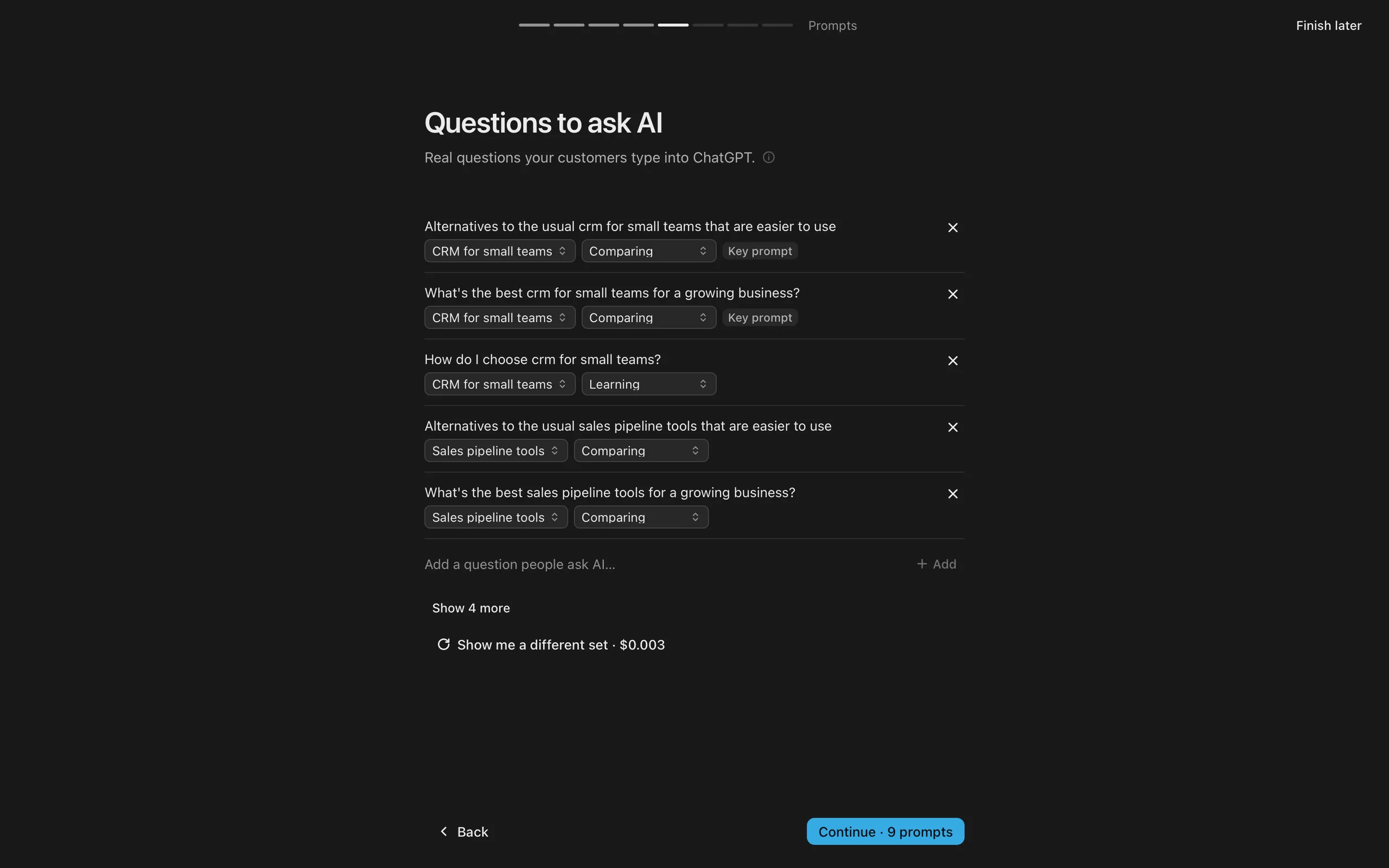
Setup suggests nine questions from your categories, written the way a buyer would ask. Edit them so they sound like your customers, remove any you don't care about, or write your own. Keep at least three. "Show me a different set" replaces the suggestions (it asks first if you edited them).
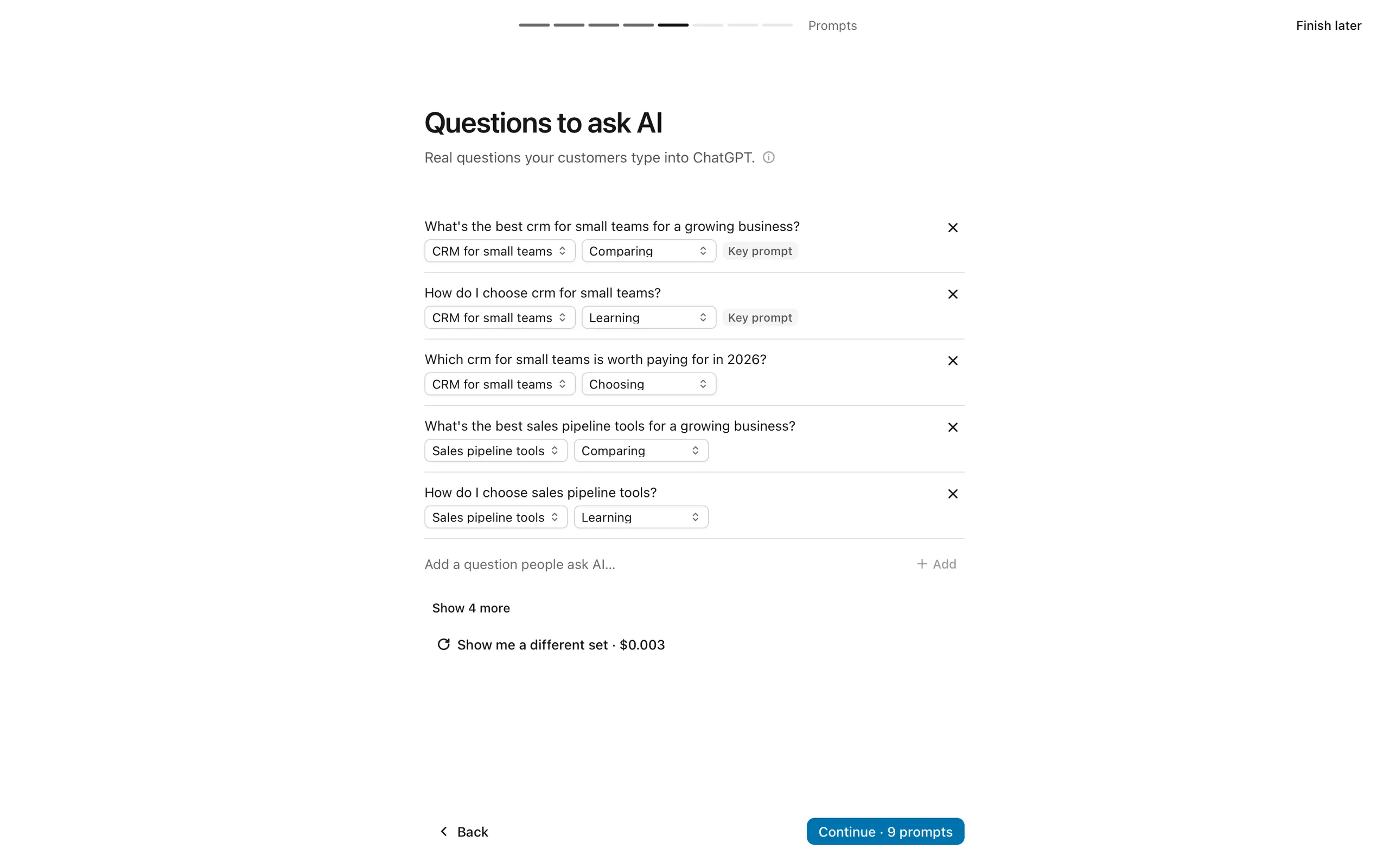
Prefer questions that don't contain your brand name. "Which CRM for small teams is worth paying for?" shows whether AI recommends you unprompted; "Is Lumen CRM any good?" only shows how it describes you. The app classifies each prompt as Brand, Competitor or Organic so you can see the mix.
Step 5: pick engines and check the cost
Engines without a key are greyed out. Each selected engine answers every prompt once. Before anything is sent you see the estimate, broken down by engine, with a range. Nothing is charged until you press Analyze visibility, and the providers bill your own accounts directly.
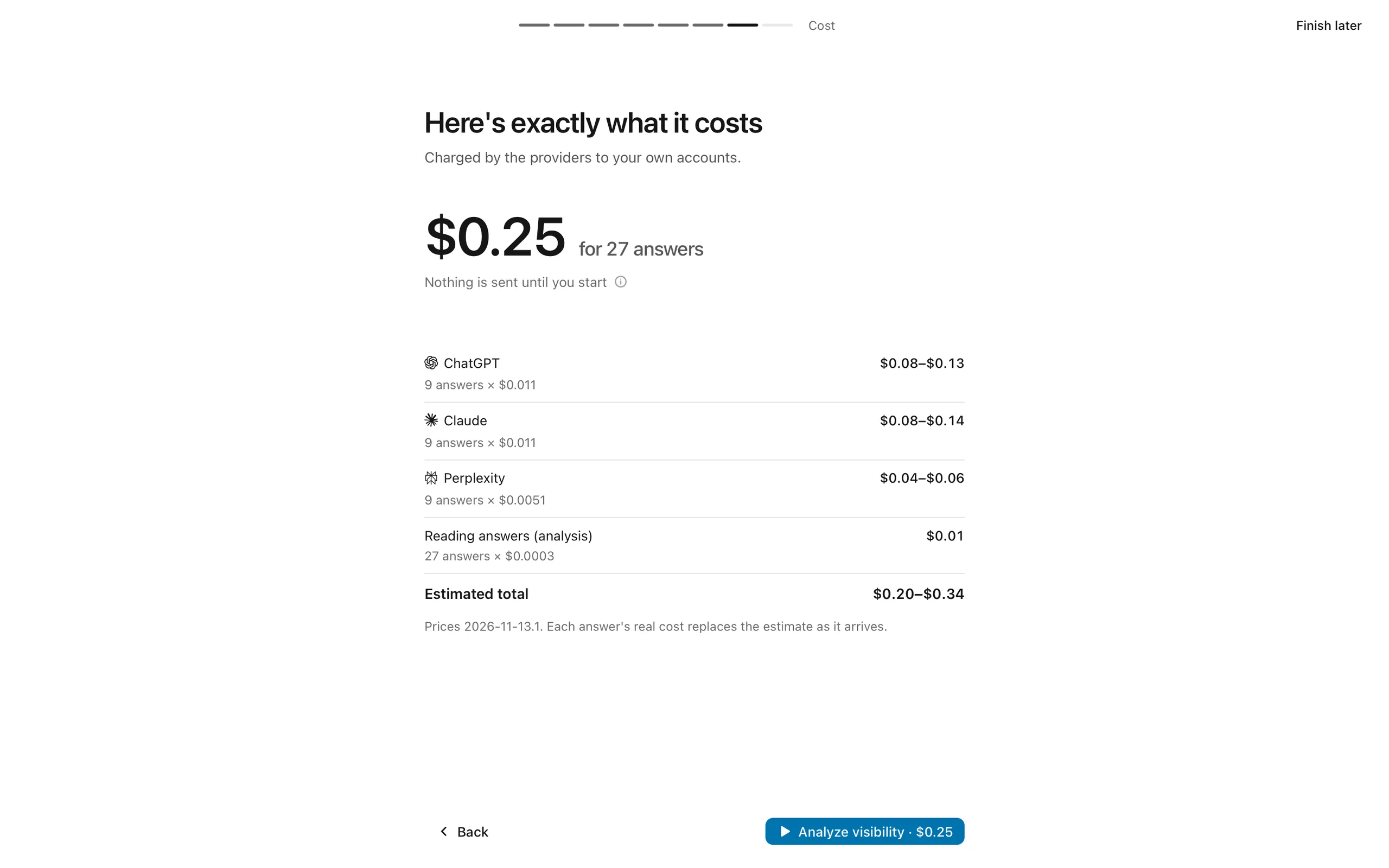
For worked numbers per engine, see cost per prompt.
Step 6: let it run
Answers stream in per engine and the run usually takes a minute or two. While you wait, pick the goal that matters most (get named more often, get your pages cited, beat a competitor, win local customers or protect your reputation); your plan puts it first. If you stop a run, the answers already collected are kept.
Step 7: read the result
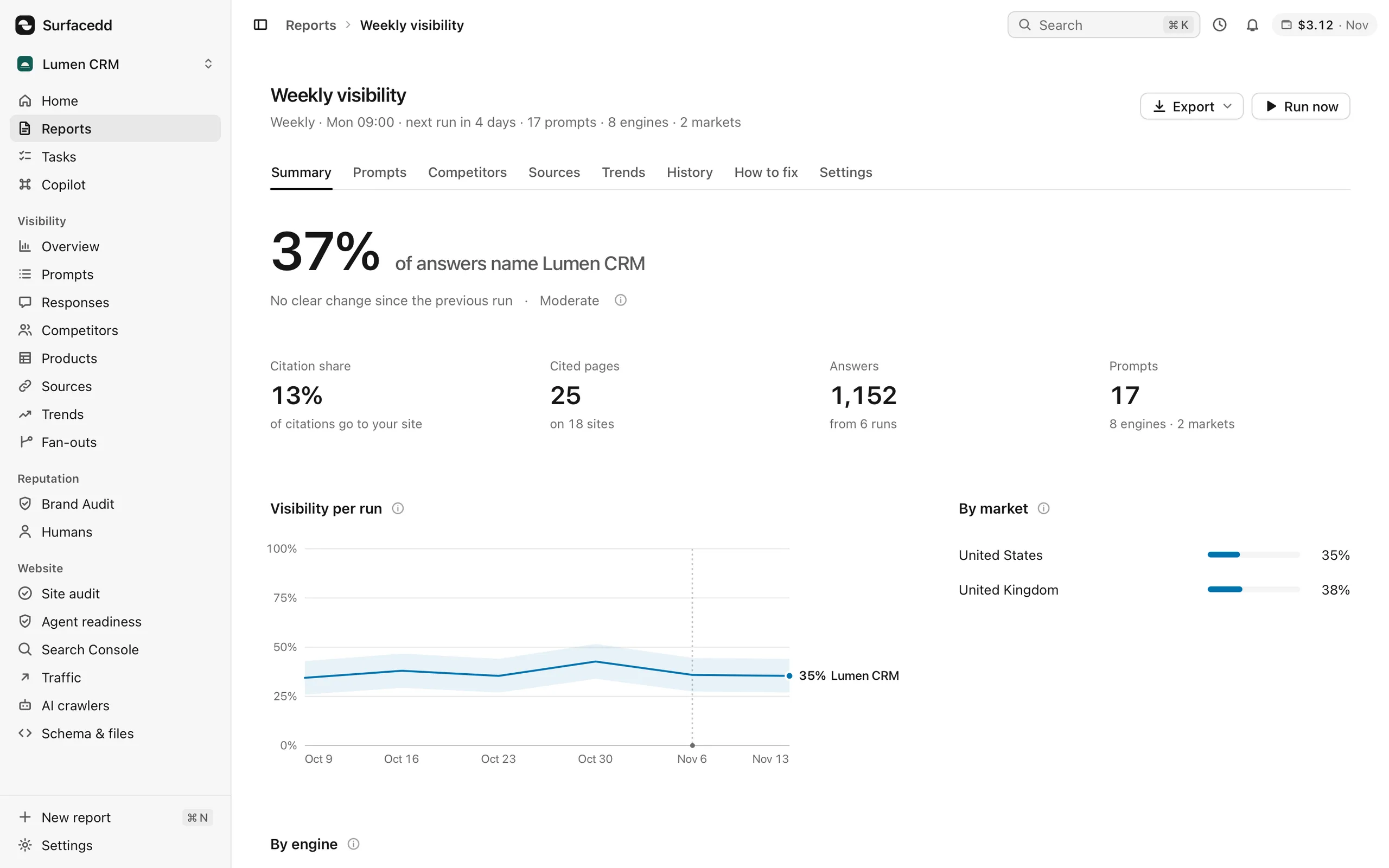
The report opens on a summary. Read it in this order:
| Read this | What it tells you | What to do next |
|---|---|---|
| Visibility, with "n of N answers" | The share of answers that named you, with the count behind it | Under 25% is "Emerging": start with the prompts competitors win |
| Who AI names | Brands named in the same answers, most frequent first | Open a competitor to see the prompts it wins without you |
| Pages AI read | Sites and pages the engines cited | Check whether your own pages appear at all |
| Range next to a rate | How much the number could move on a re-run | Treat small differences inside the range as noise |
Every number opens the answers behind it. Open any answer to read the full text with your name highlighted and its sources. Definitions are in the metrics reference.
Step 8: keep it up to date
The last setup step offers Track weekly (Mondays at 9:00 in your time zone, same prompts, same engines, same cost), Launch at login so scheduled runs happen on time, and Allow notifications. Answers vary between identical runs, so judge trends over about four weekly runs rather than one. After each run, tasks list the fixes with the evidence behind them.
Troubleshooting
| Symptom | Cause | Fix |
|---|---|---|
| "Add OpenAI or Anthropic too" | No key that can read answers | Add an OpenAI or Anthropic key; one of them powers the analysis step |
| Key status "Billing needed" | The provider account has no credit or billing | Add billing in the provider console, then test again |
| Website step can't read your site | Blocked, no text, or unreachable from your computer | Describe the business in a sentence and add categories yourself |
| "Keep at least 3 prompts" | Fewer than three prompts left | Add or restore prompts |
| "Runs need an active licence" | The licence isn't activated on this computer | Activate the licence, or explore the sample workspace |
| Amber "Partial" badge | Some answers failed or the run was stopped | Retry failed items from the report's History tab; you pay only for retried items |
Provider error messages are explained in provider errors.
Related docs
- Ranges and samples: why a number comes with a range.
- Exports: PDF, CSV, JSON and NDJSON.
- How it works: the whole loop, from prompt to fix.
- Brand Audit: check what models say about your brand from memory and from the web.
- Site audit: make sure AI can read the pages you want cited.
Keep reading
- ProductFrom "does AI recommend us?" to your first fix in one sittingTen steps, each with its cost shown before it runs. Setup takes about three minutes; the first answers arrive a minute or two later.Read
- DocsEvery Surfacedd metric, with its formula and a worked exampleEach number in the app is a count of stored answers, shown next to the count behind it and, where it matters, a 95% range.Read
- DocsKnow what a report will cost before you run itEvery run shows an estimate with a range before it starts, every answer records what it actually cost, and budgets can pause schedules before they overspend. You pay providers their list price; Surfacedd adds nothing.Read
- DocsKnow what to fix first, with the evidence behind every taskTasks come from deterministic checks on your own answers, logs and audits. Each one carries the evidence that justified it, and closes itself when the next run shows the fix worked.Read
How we research, write and correct pages: read our editorial policy.